ACC Connect Console: User Manual
A walkthrough of every screen in the console. Each screen notes which roles can open it.
Roles & permissions
| Tier | Who can access |
|---|---|
public | Anyone (no sign-in) |
all | All signed-in users |
staff | Super Admin, Manager, Project Coordinator, Accountant |
write_staff | Super Admin, Manager, Project Coordinator |
admin | Super Admin, Manager, Project Coordinator |
super_admin | Super Admin only |
self | The account owner |
self_or_staff | The owner, or any staff role |
self_or_admin | The owner, or Super Admin / Manager / Project Coordinator |
Screenshots show the Super Admin view (the fullest). Manager and Project Coordinator see the same screens except Policies, which is Super Admin only; see Role view differences.
Contents
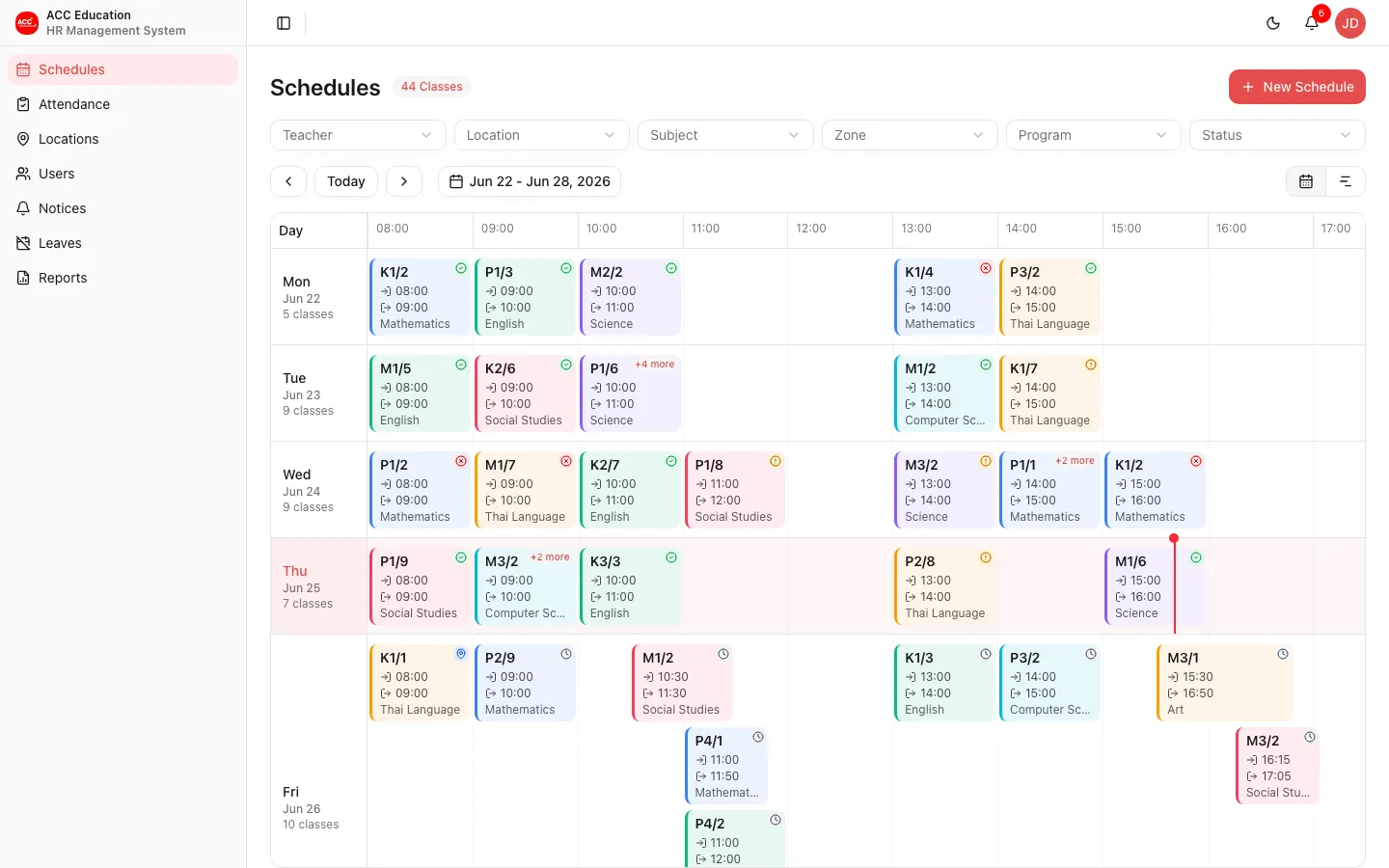
Schedules
Schedules
Staff must pick a filter before the calendar loads any classes - an unfiltered week could be thousands of records. Non-staff users skip this: their view is always scoped to their own classes.
- Pick at least one of teacher, location, subject, zone, program, or status, then click Search to load results. Editing filters afterwards does not refetch automatically - change what you need, then click Search again; an "Unapplied filter changes" note and a pulsing Search button remind you a change is waiting.
- Your last-used filters are remembered for the session, so returning to Schedules (e.g. after opening a class) does not require refiltering.
- Switch between the calendar and timeline views with the view toggle. Your view choice is kept in the page URL.
- Filter status to "Needs review" to work the queue of classes teachers flagged for review (see Review Flagged Classes below).
- Click a class to open its detail panel (see Class Detail below).
- Bulk actions: turn on Select (top right) to tick classes across the calendar - the selection is kept as you move between weeks - then act on them together. Use Select all to tick every class currently shown (it respects your filters and adds to any classes already selected in other weeks); Clear empties the selection. Where several classes share a slot, open it and tick them individually.
- Edit fields changes the teacher, location, subject, program, zone, level, or section for every selected class (blank fields are left as is). Set status cancels them or marks attendance with a reason, and can assign a substitute teacher - a new class is created for the substitute at each slot while the original keeps its status. Duplicate copies the selected classes into a new date range, e.g. to roll a term into the next one. Classes locked by an approved leave are skipped.
Roles: Super Admin, Manager, Project Coordinator, Accountant
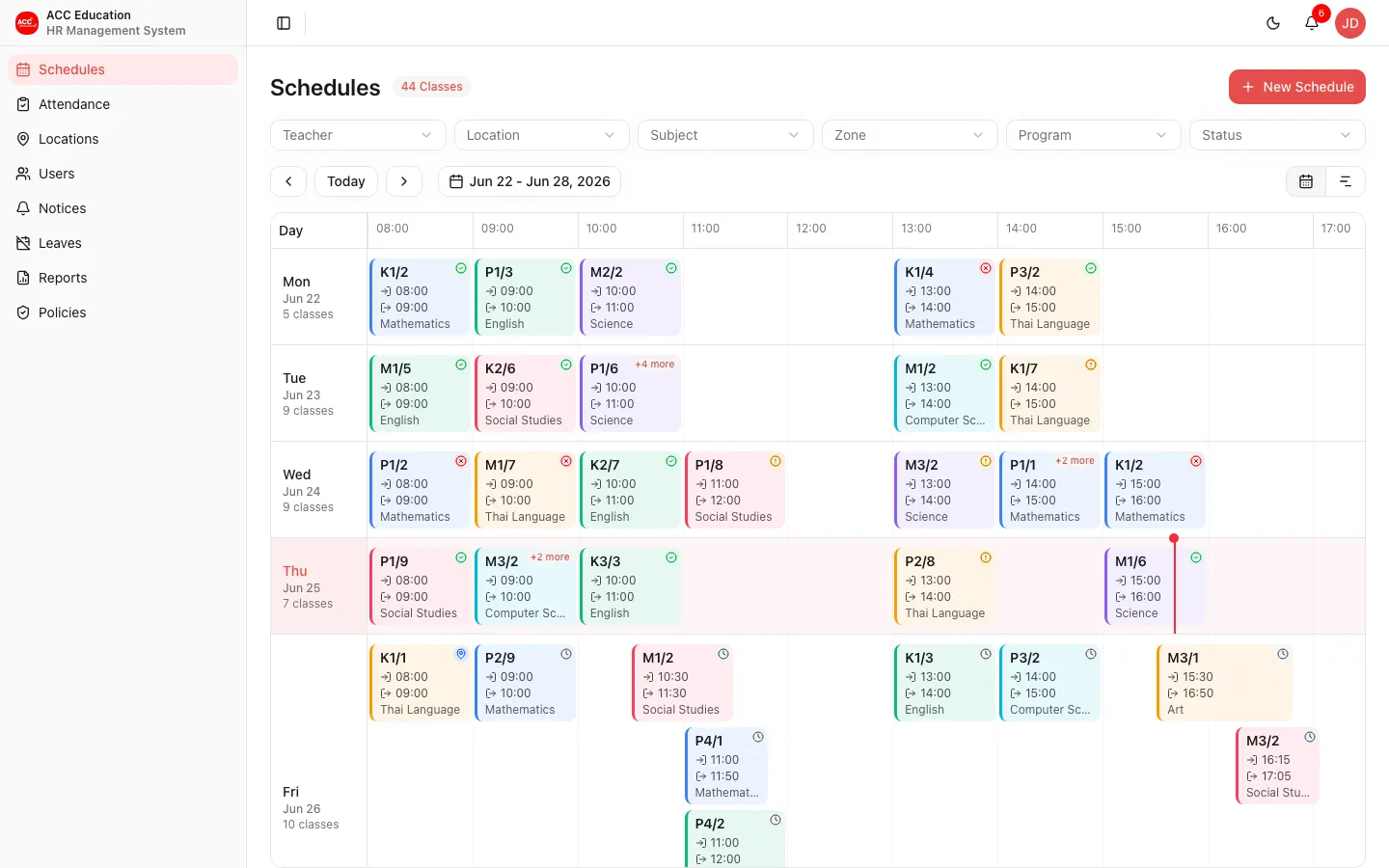
Filtered Schedules
After picking a filter and clicking Search, the calendar lists every matching class with its teacher, subject, and location.
- Clear Filters appears once a filter is active; it empties the filter bar and reloads immediately (no separate Search click needed).
Roles: Super Admin, Manager, Project Coordinator, Accountant
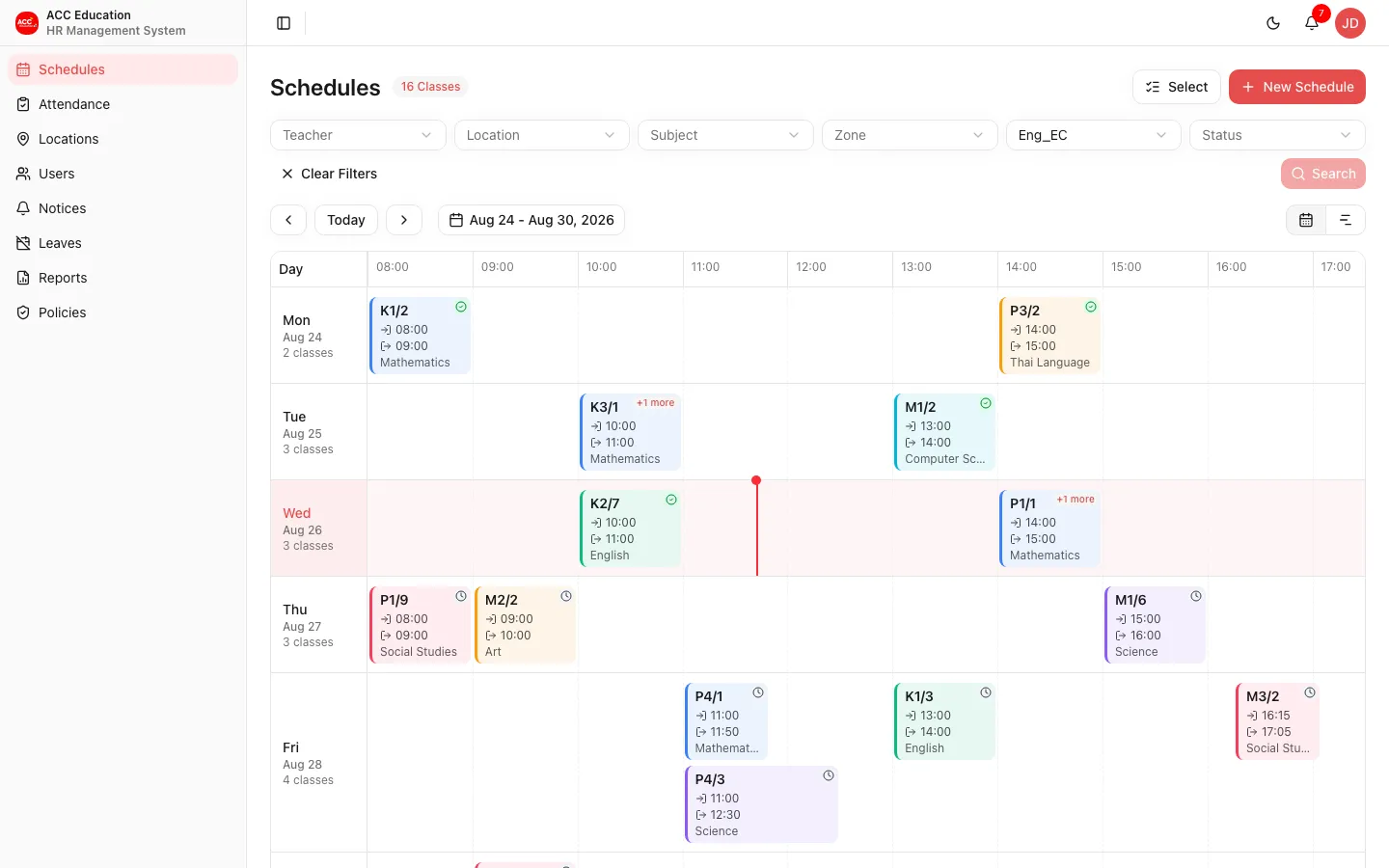
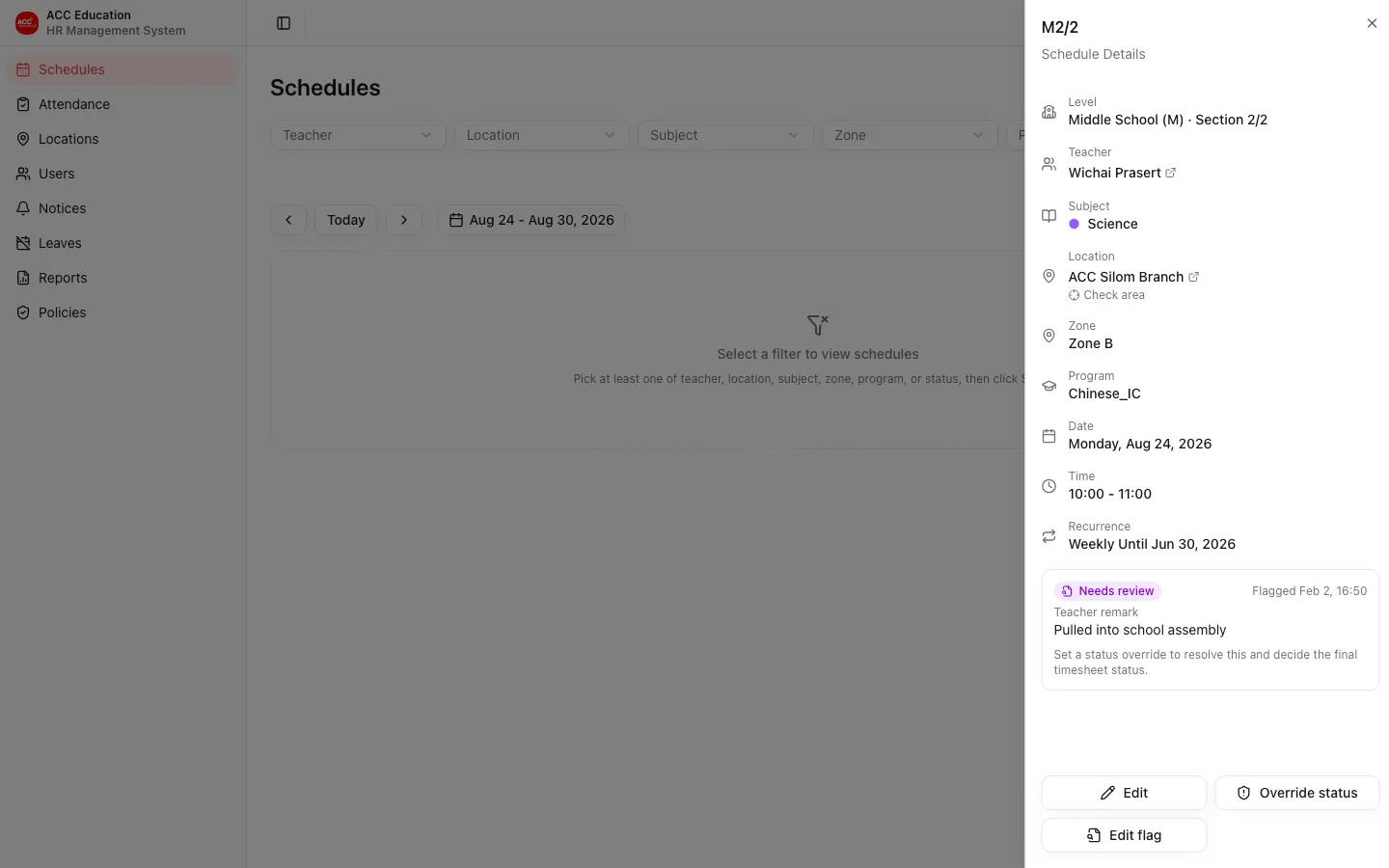
Class Detail
Opening a class shows its detail panel, with links to the teacher and the location.
- Status override (for support cases): admins can manually set the class status to Present, Late, Absent, or Cancelled - for example, to cancel a class for a school activity, or to mark attendance when a teacher could not check in. A reason is required, and the override wins over the automatic status. Cancelling frees the teacher's time slot, so they can be assigned another class at that time (for example, as a substitute); clearing the cancellation is then blocked until that other class is removed. A class locked by an approved leave cannot be overridden.
- While overriding, you can optionally assign a substitute teacher: a new class is created for the substitute at the same slot while the original keeps its overridden status. The assignment is blocked if that teacher already has another class in the slot, unless that class was cancelled by an admin - a cancelled class frees its slot.
- Check area: from the Location field, test whether a point falls inside the location's check-in radius, by entering a coordinate or using your current location.
- Admins can edit the class from here even after a teacher has checked in - the check-in is kept, and Status override fixes the timesheet status if needed. Delete stays unavailable once a class has recorded attendance.
Roles: Super Admin, Manager, Project Coordinator, Accountant
Review Flagged Classes
A teacher who could not teach a class (for example, pulled into a school activity) flags it for review instead of checking in. It shows the Needs review status and is never counted as absent.
- Find flagged classes from the schedule: set the Status filter to "Needs review" and click Search to list the review queue. Flagged classes carry a distinct purple Needs review badge.
- The class detail panel shows the teacher's remark and when the class was flagged.
- Resolve it with Status override: set the final timesheet status (Present, Late, Absent, or Cancelled) with a reason. The override wins over the flag and clears Needs review.
- Flag for review: admins can also set or clear the flag themselves from the panel - useful to raise a class for review, or to remove a flag without overriding the status.
Roles: Super Admin, Manager, Project Coordinator, Accountant
Add Schedule
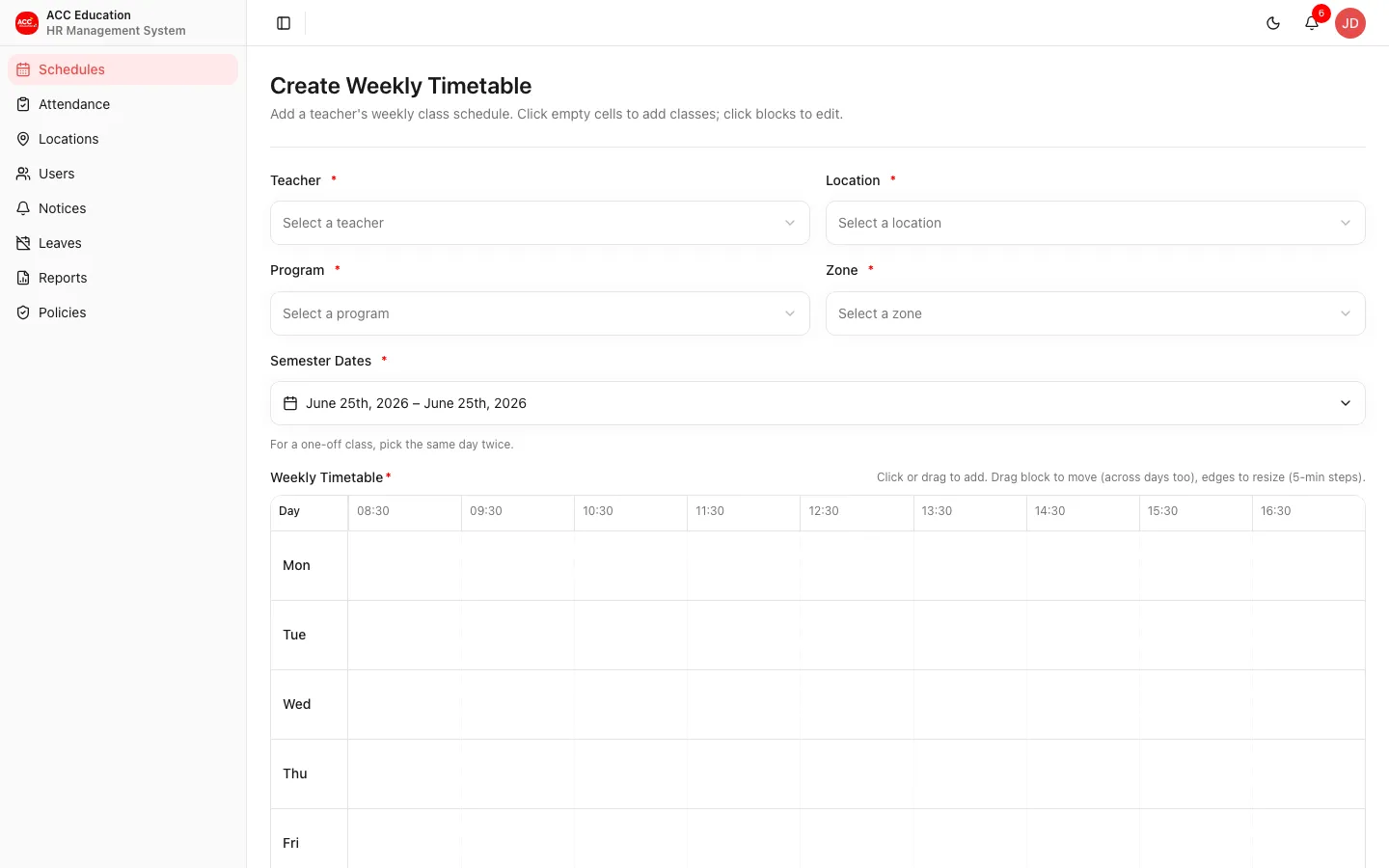
Build a weekly timetable: pick the teacher, location, program, and zone, then lay out class slots and repeat them across a date range.
- Add slots by clicking or dragging empty cells in the weekly grid; drag a block to move it, drag its edges to resize in 5-minute steps. Each slot sets its subject, level, section, day, and start/end time. New slots start from the previous slot’s subject and level, so adding many similar classes is quicker.
- Pick the semester date range to repeat the weekly pattern across. For a one-off class, pick the same day twice.
- If the same subject + level + section appears on more than one day, a "Possible duplicate classes this week" warning is shown. It does not block you - confirm if it is intentional (for example, a make-up class).
- Existing classes for the chosen teacher appear as greyed-out blocks so you can avoid clashes.
- Admins can manage the Program and Subject lists in place from those dropdowns ("Manage programs" / "Manage subjects"): add, rename, recolor subjects, or remove. An item still used by a schedule cannot be deleted.
Roles: Super Admin, Manager, Project Coordinator
Edit Schedule
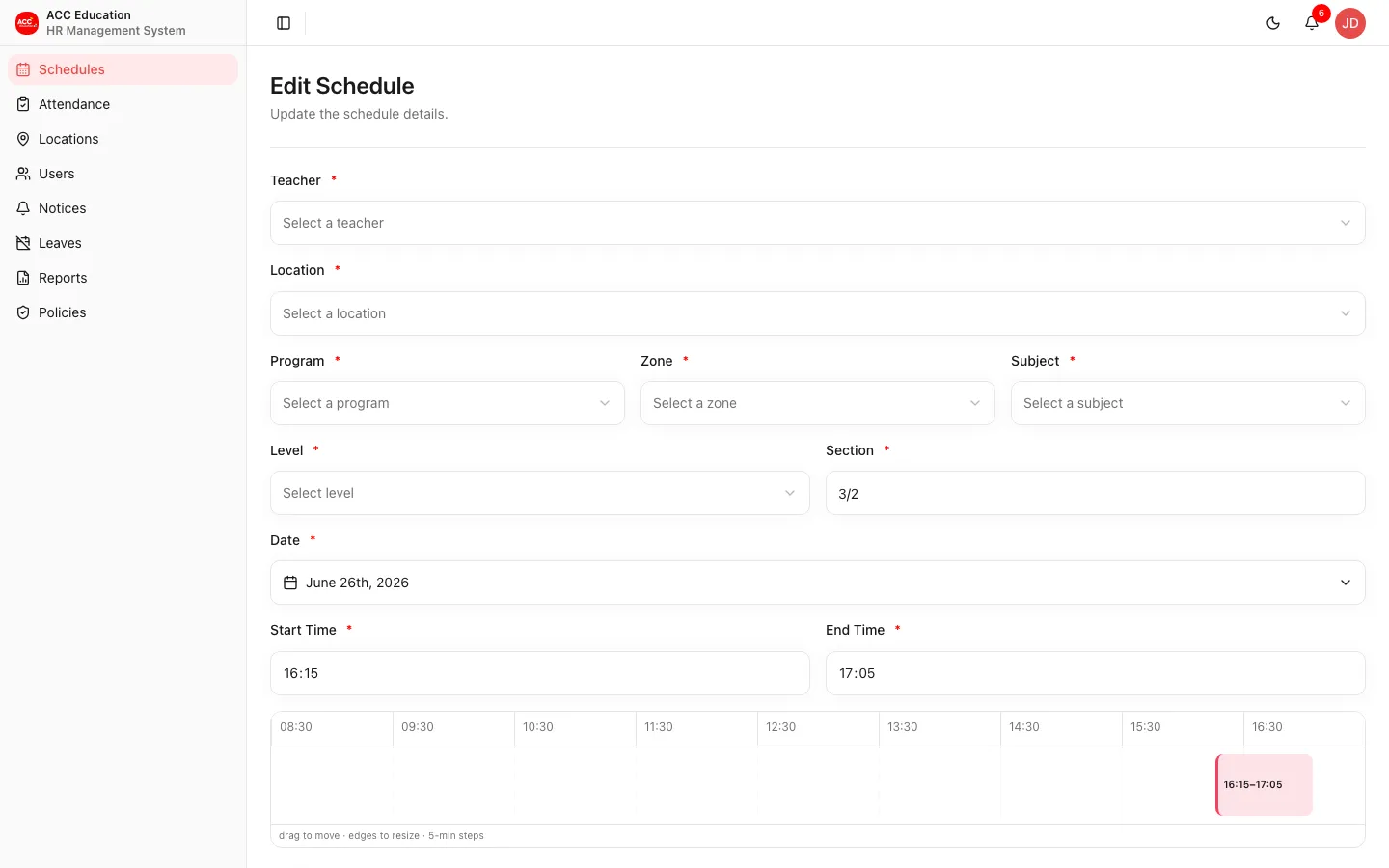
Adjust an existing class.
- A class can be edited even after a teacher has checked in; the check-in is kept and an admin can override the status afterwards. Only a class moved or cancelled by an approved leave cannot be edited.
- For a class in a recurring series, you choose whether the change applies to this class only, this and following classes, or the whole series - including any checked-in classes in the series.
- Changing the day moves the class: for the whole series (or this-and-following) the whole recurrence moves to the new weekday; for a single class, only that one moves.
- Deleting a class in a recurring series asks the same scope question - this class only, this and following classes, or the whole series. A non-recurring class is deleted with a simple confirm.
- Other classes for the same teacher that day are drawn alongside; any that overlap the times you set are highlighted in red.
Roles: Super Admin, Manager, Project Coordinator
Attendance
Attendance
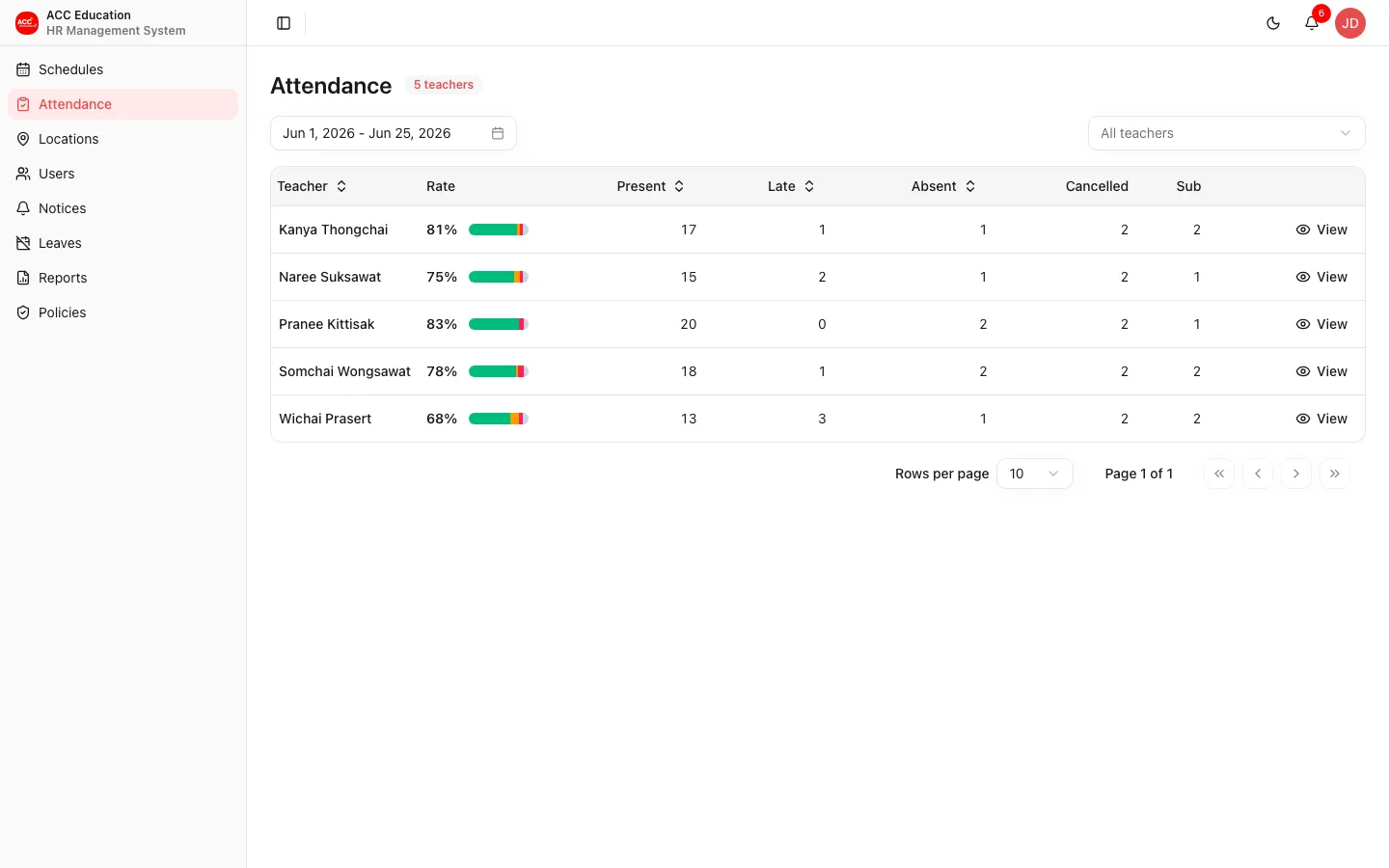
Staff review the attendance roster across teachers for a chosen month; each teacher sees only their own summary.
- See each teacher's attendance rate for the period, with a present / late / absent / needs review / cancelled breakdown bar.
- Choose the period with the date-range picker. It defaults to the current month and can span up to one year.
- Search by name, and sort by teacher, present, late, or absent. Click View for a teacher’s full breakdown.
- Substitute counts classes covered for other teachers; these are already included in the totals, so they are shown separately.
Roles: The owner, or any staff role
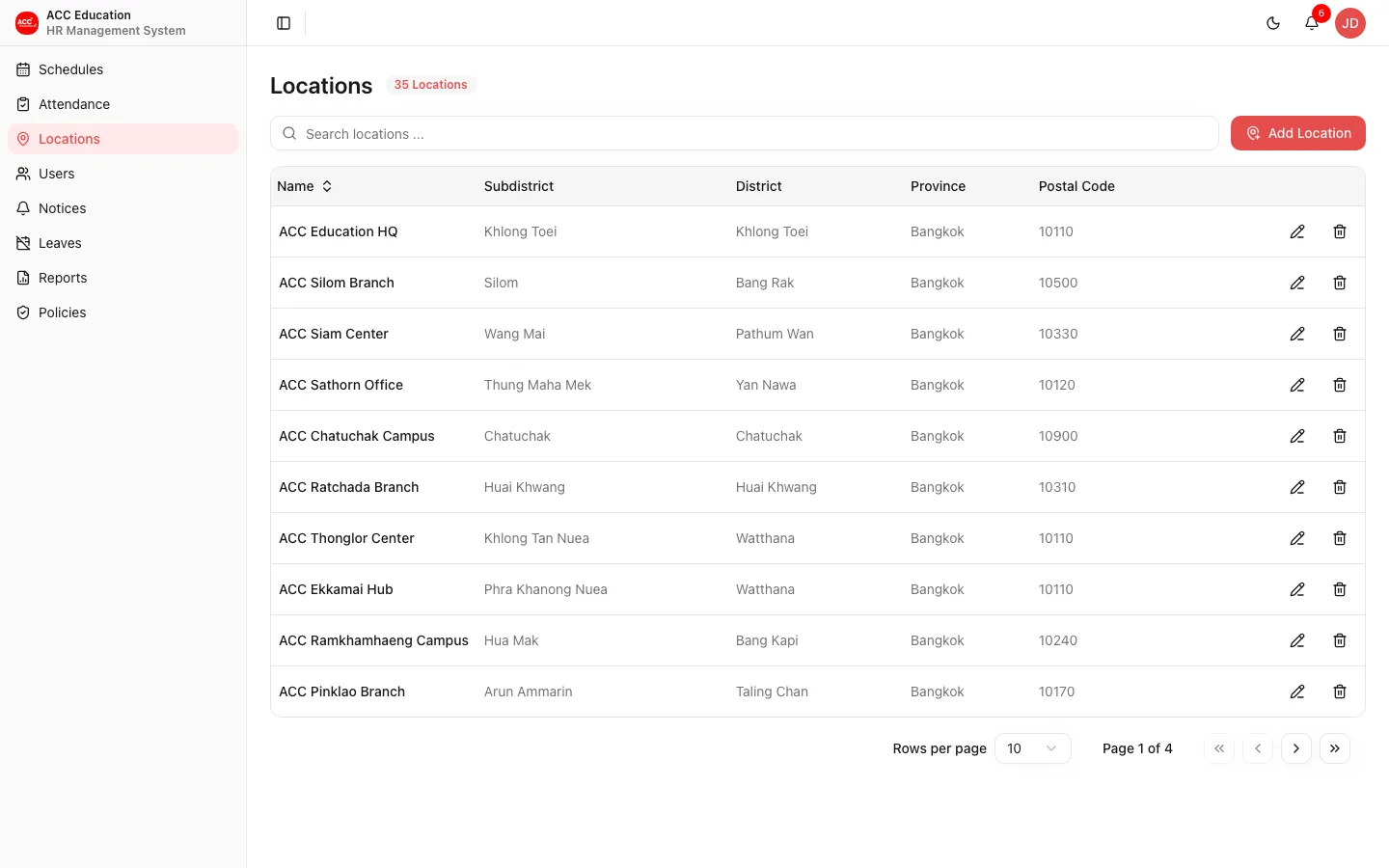
Locations
Locations
All teaching locations with their zone assignments.
Roles: Super Admin, Manager, Project Coordinator, Accountant
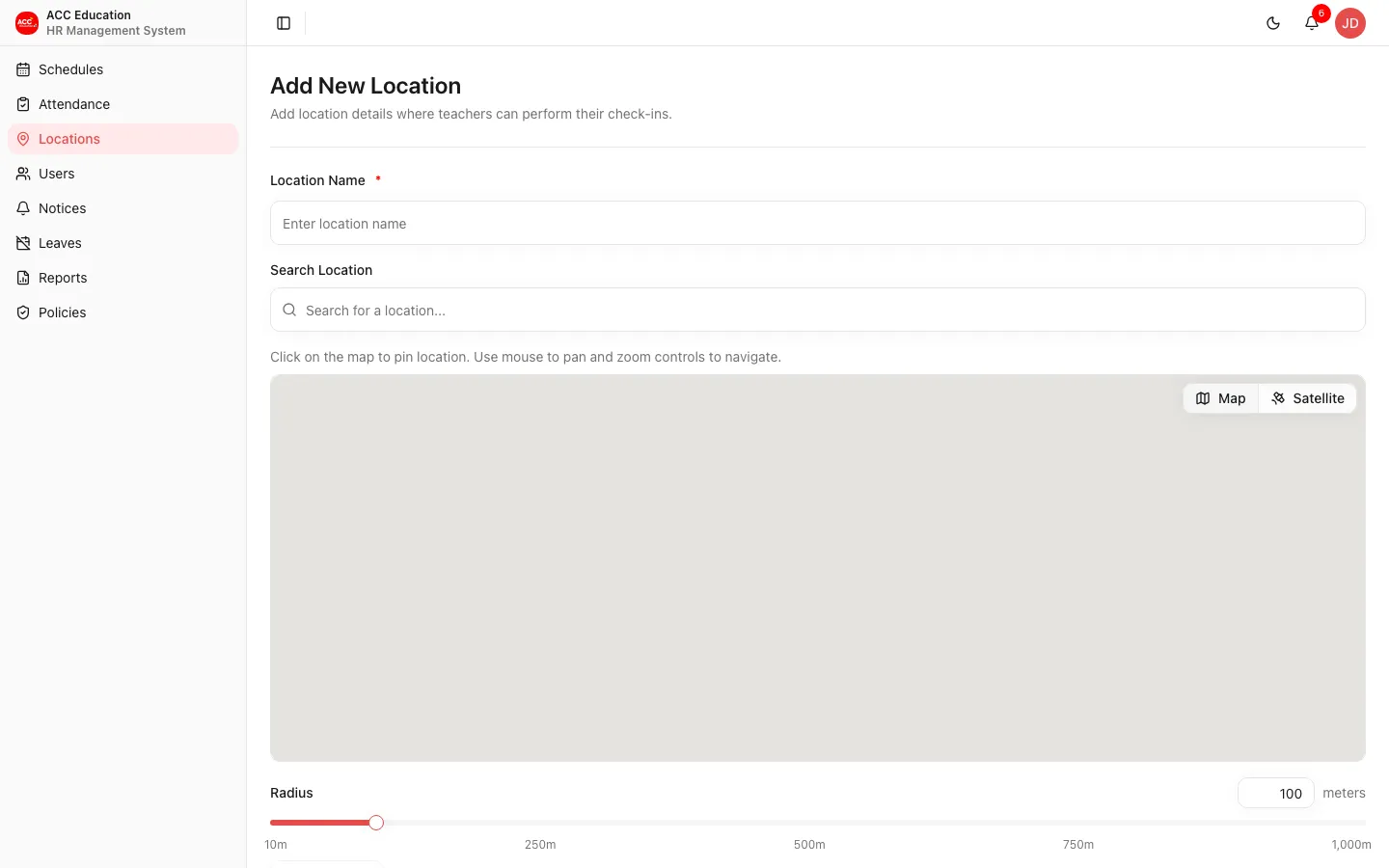
Add Location
Register a new location.
Roles: Super Admin, Manager, Project Coordinator
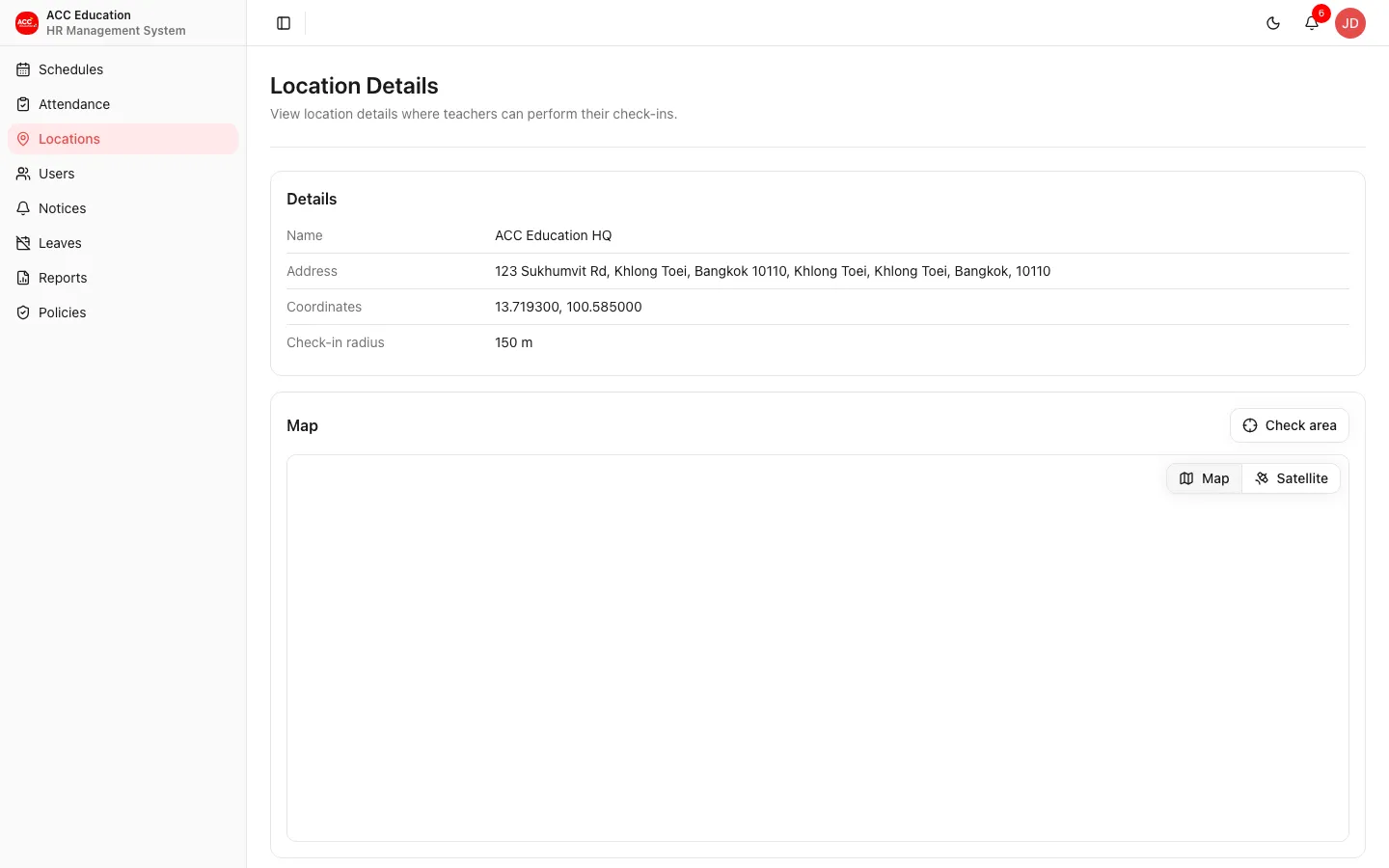
Location Detail
A single location with its details and map.
- Check area: from the Map section, test whether a point falls inside the location’s check-in radius. Enter a latitude/longitude or use your current location, and the dialog shows Inside or Outside, the distance from the centre, and the radius.
- The same Check area tool is available while creating or editing a location, and from the Location field on a class detail.
Roles: Super Admin, Manager, Project Coordinator, Accountant
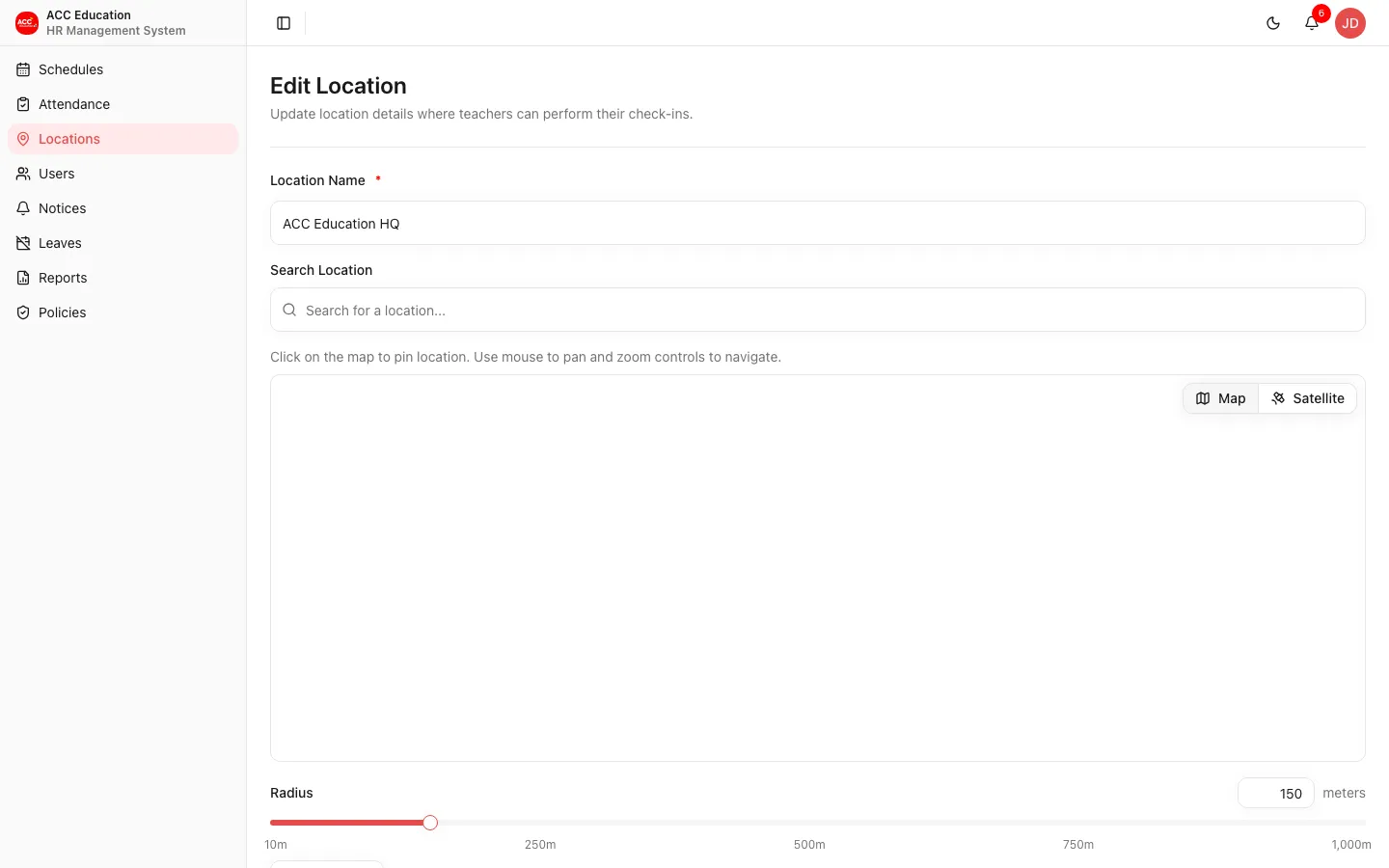
Edit Location
Update a location.
Roles: Super Admin, Manager, Project Coordinator
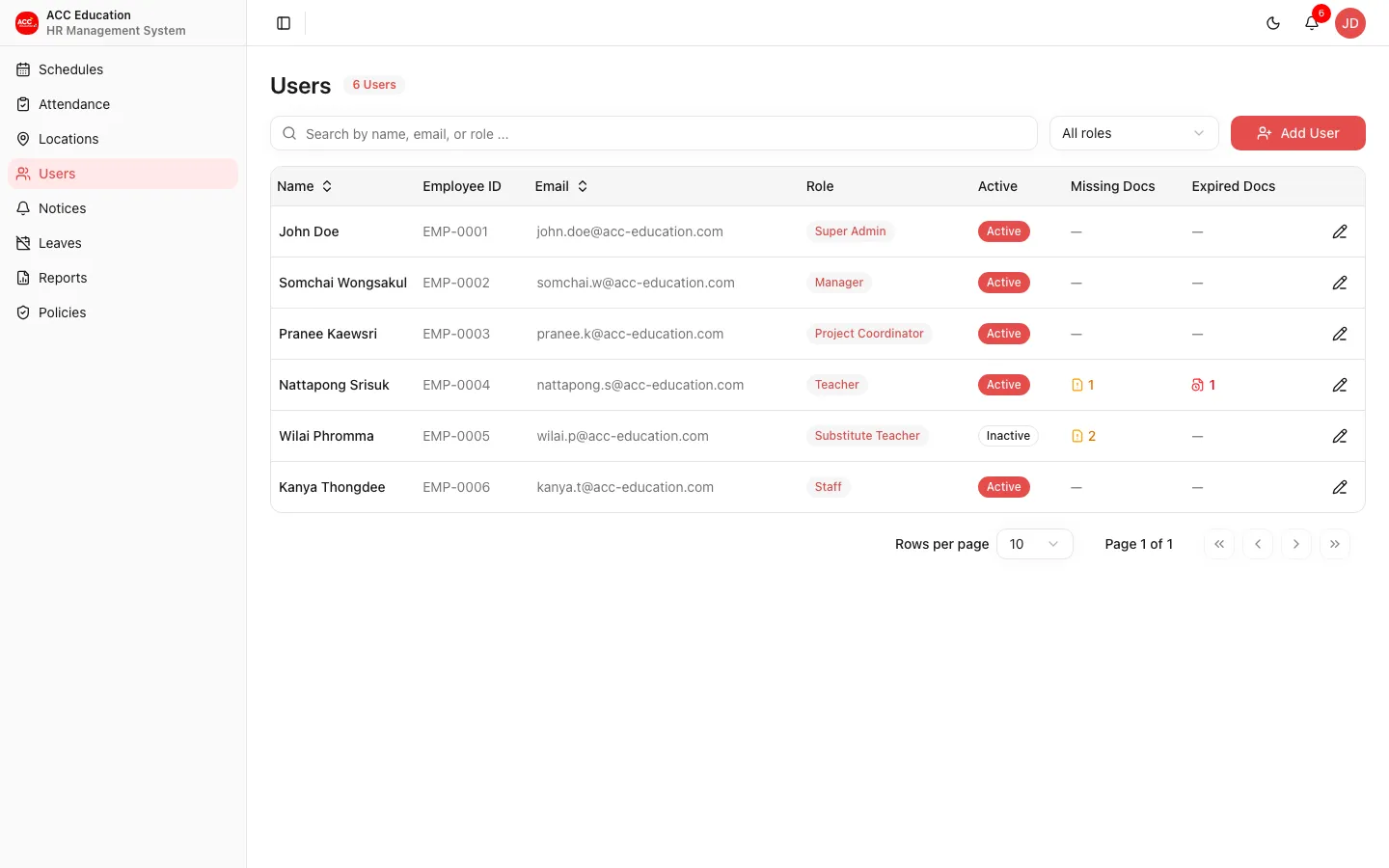
Users
Users
The directory of staff and teachers.
Roles: Super Admin, Manager, Project Coordinator, Accountant
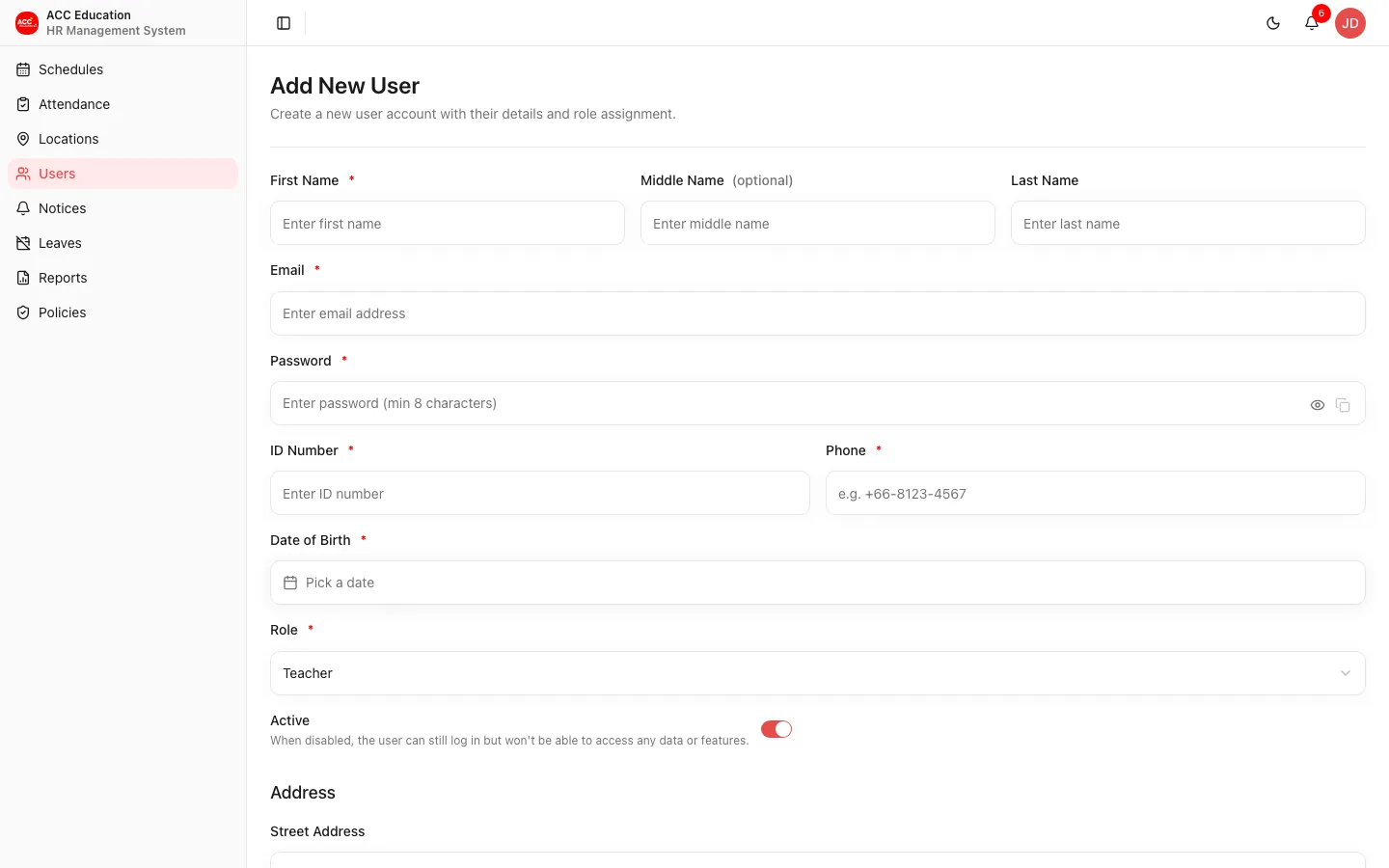
Add User
Create a new user, set their role, and give them an initial password.
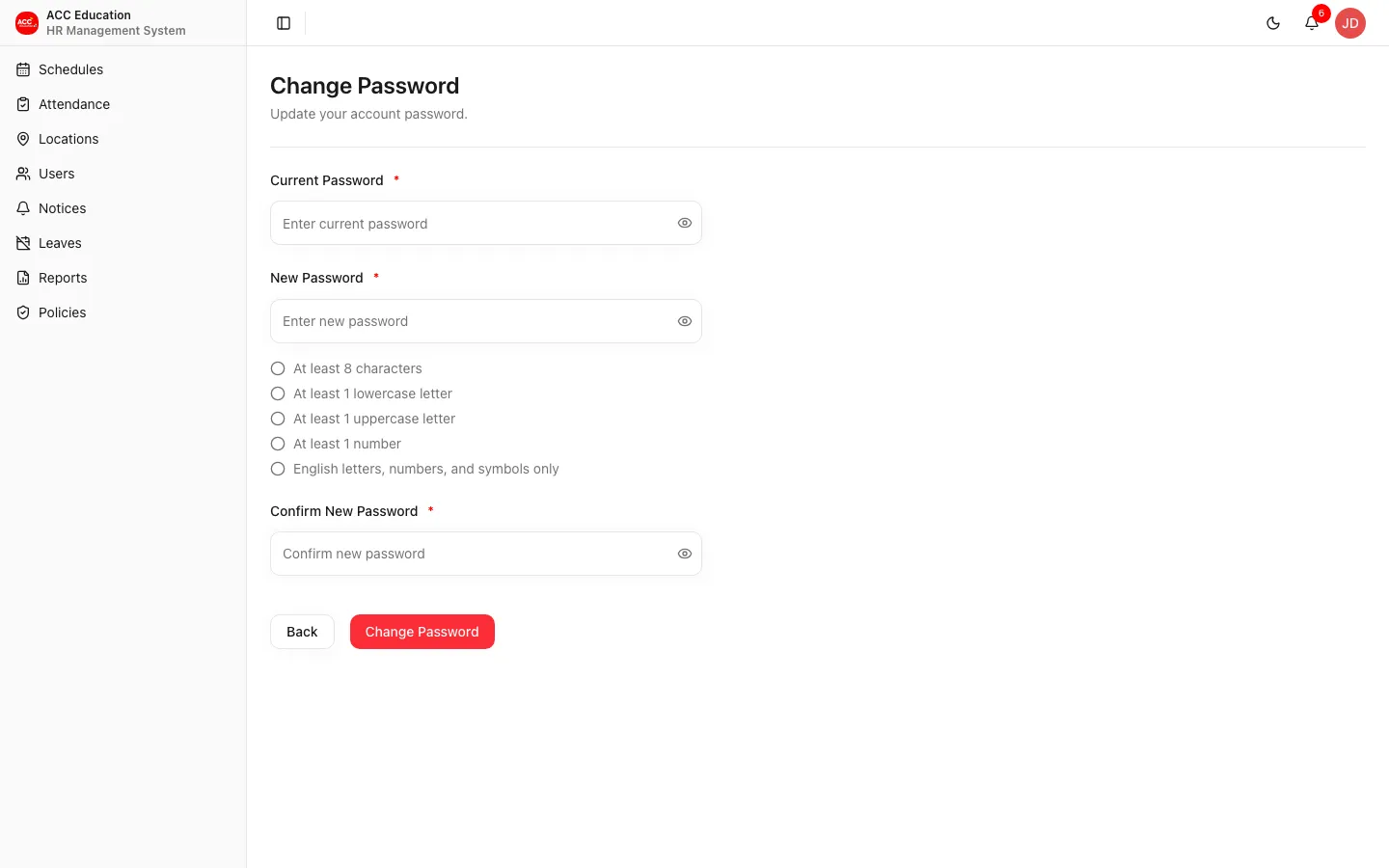
- Set the role, contact details, and an initial password. Use the copy button to share the password with the user; they can change it themselves later from My Profile > Change Password.
- The Active toggle controls data access: when disabled, the user can still sign in but cannot reach any data or features.
- Project Coordinators can be assigned the zones they oversee.
Roles: Super Admin, Manager, Project Coordinator
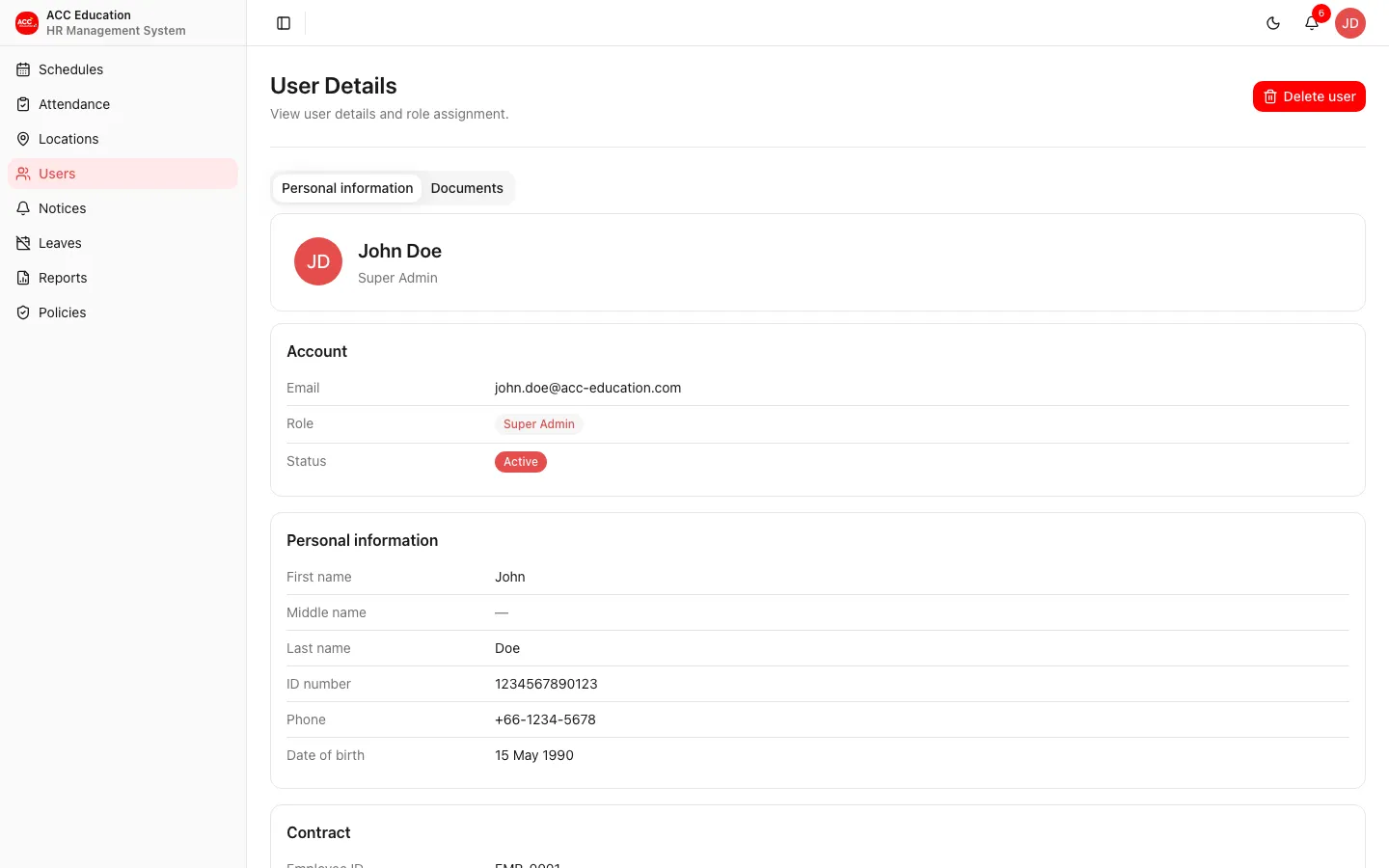
User Detail
A user profile with role, contact, documents, and assignment details.
- Tabs cover personal information, documents, face enrollment, and accepted consents.
- Face enrollment happens on the mobile app after the user accepts the biometric consent. Admins can Reset it here, after which the user must re-enroll before checking in again.
Roles: The owner, or any staff role
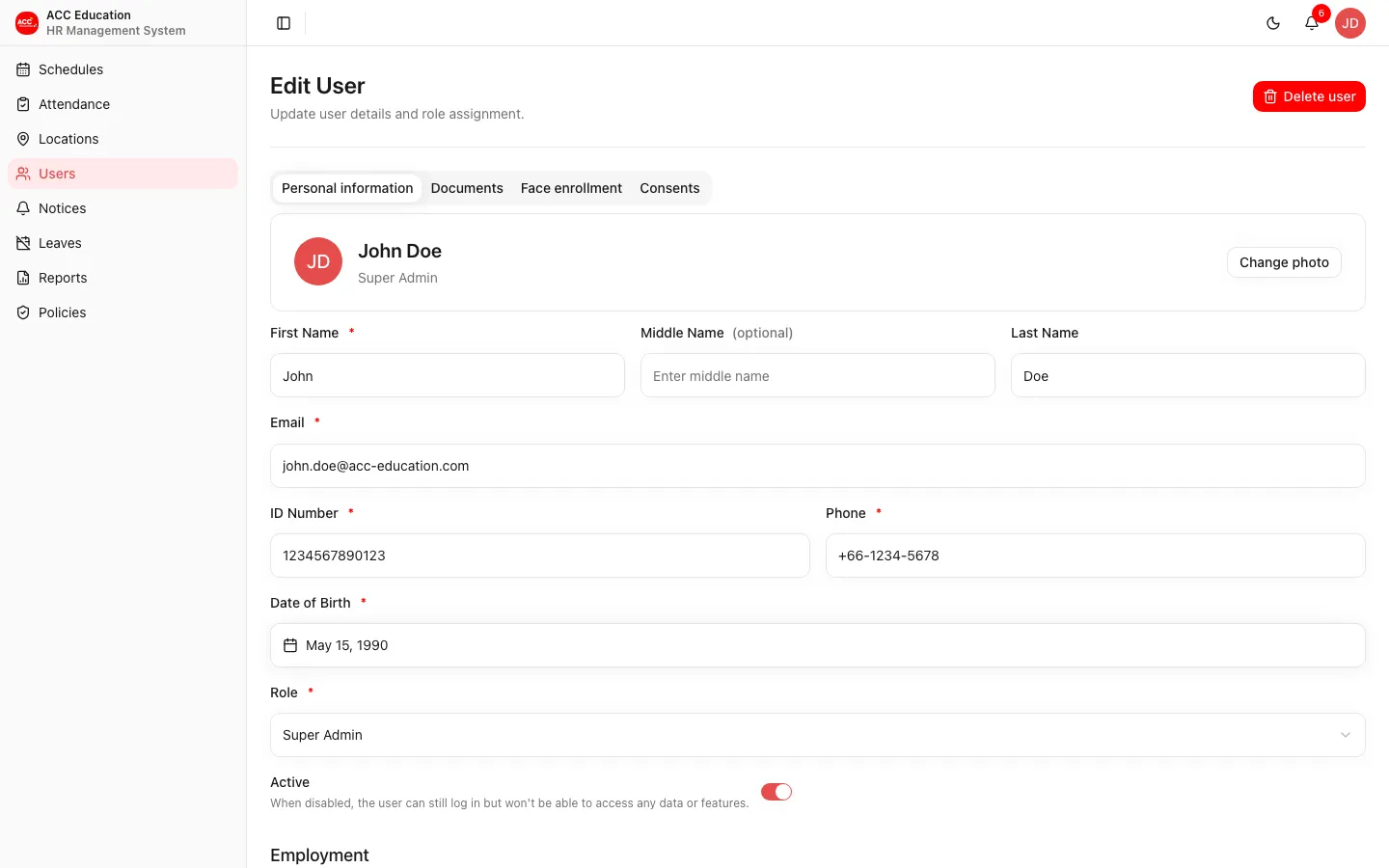
Edit User
Change a user’s role, contact, employment, address, and bank details.
- Delete user: permanently removes the user and everything attached to them - documents and their files, leaves, notices, face enrollment, consents, and the login account. You must type the user’s name to confirm, and it cannot be undone.
- A user who is still referenced by schedules or check-ins cannot be deleted; reassign or remove those first.
Roles: Super Admin, Manager, Project Coordinator
Notices
Notices
Announcements broadcast to the mobile app.
Roles: Super Admin, Manager, Project Coordinator, Accountant
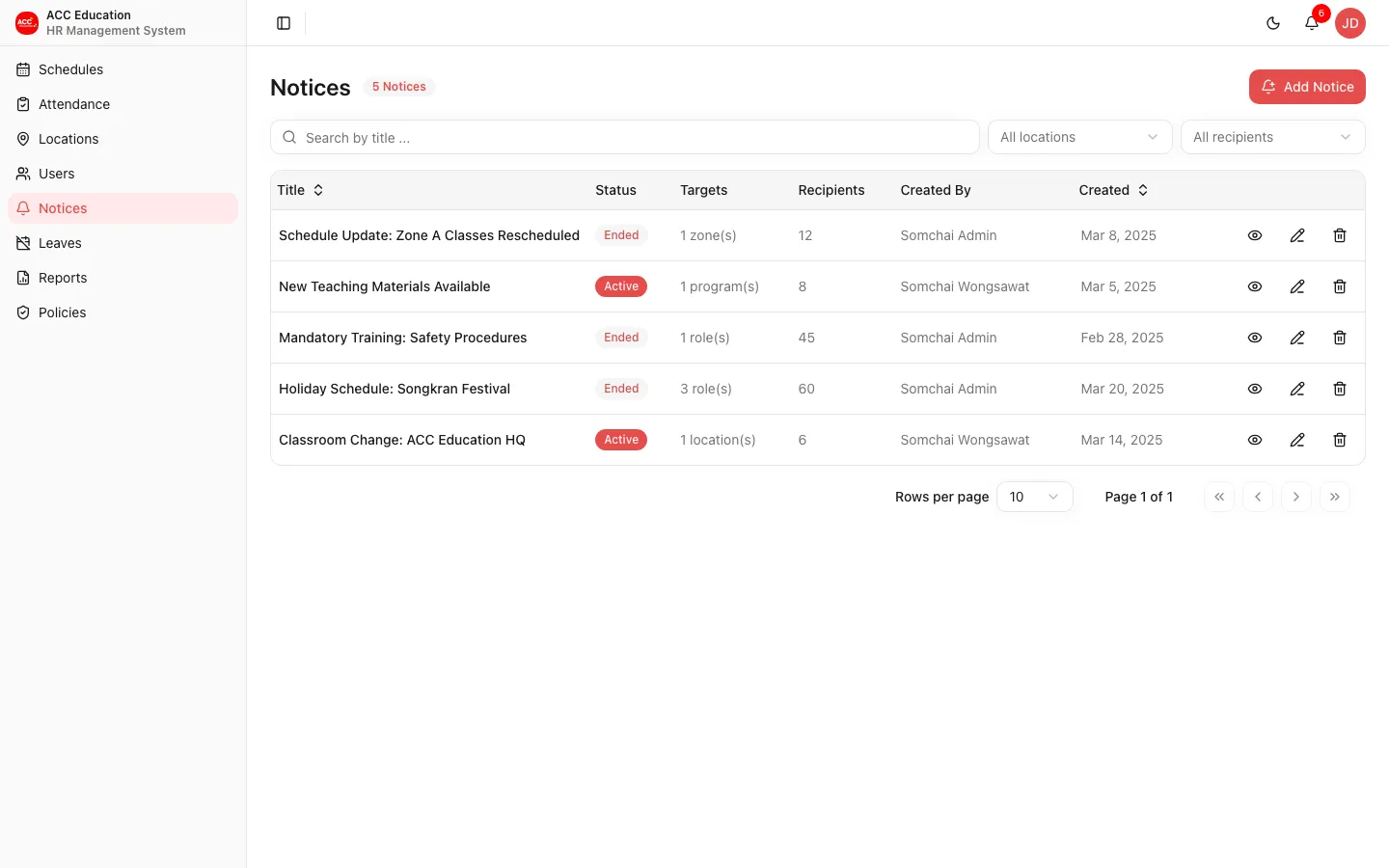
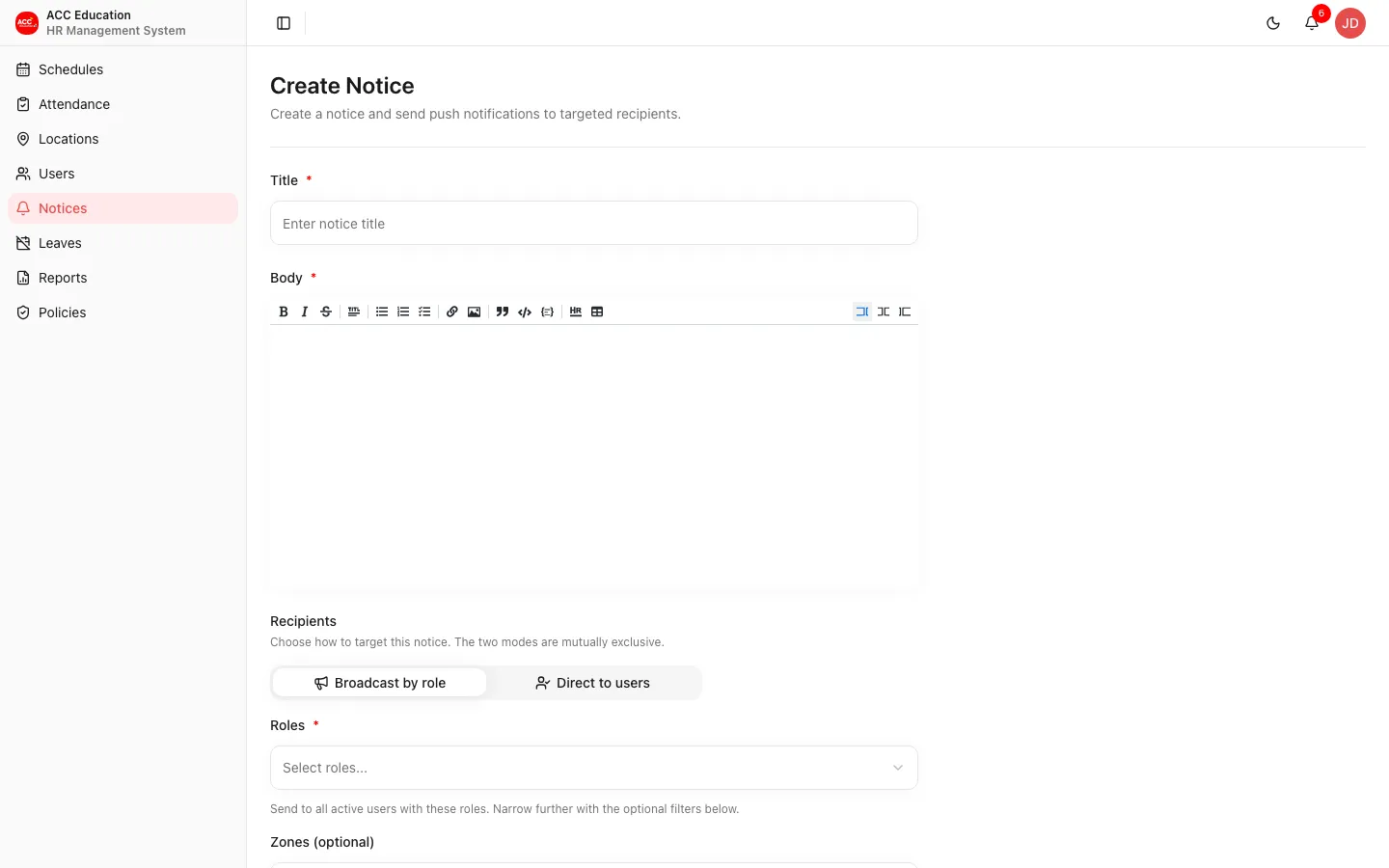
Add Notice
Compose a new notice.
Roles: Super Admin, Manager, Project Coordinator
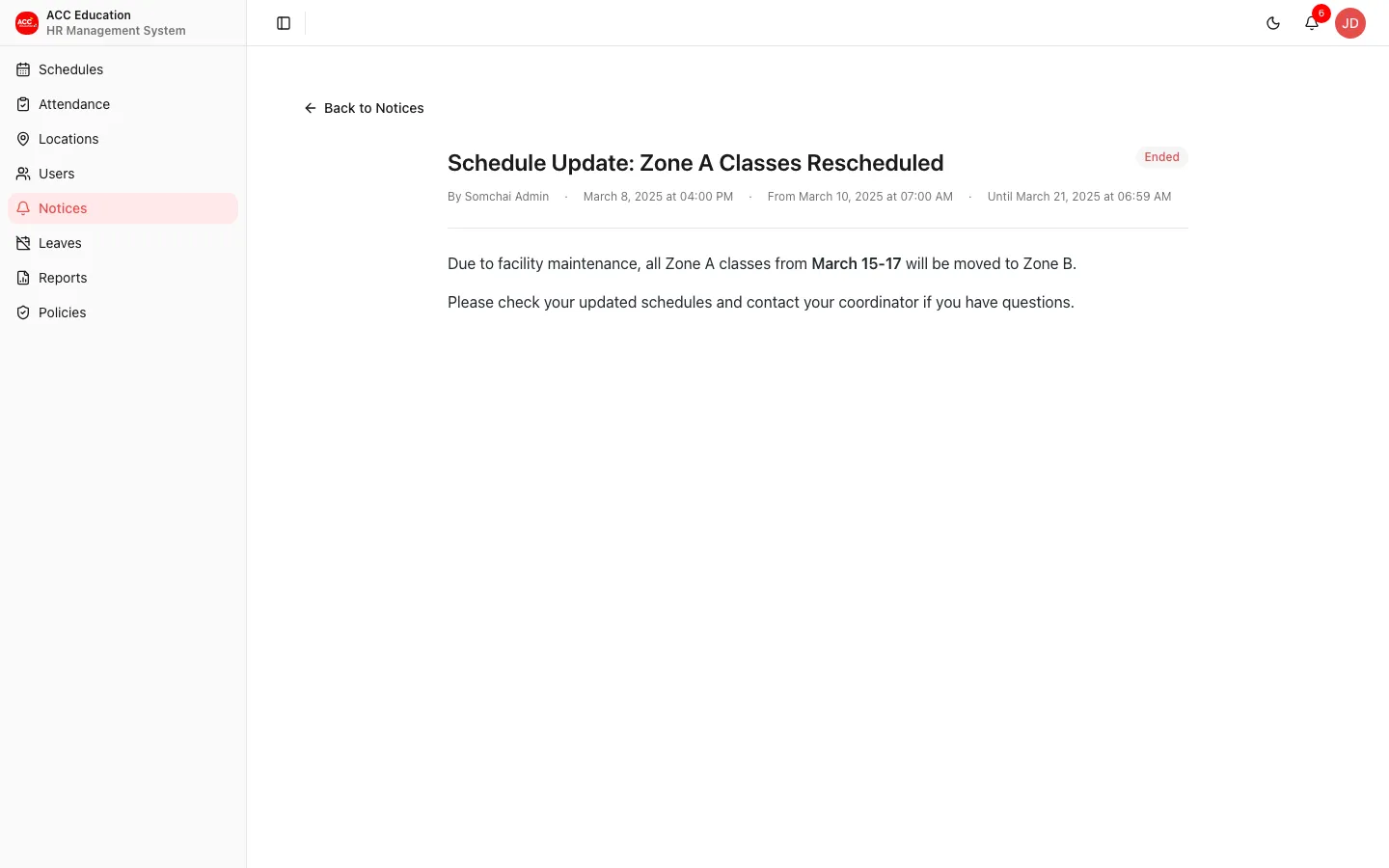
Notice Detail
A published notice.
Roles: Super Admin, Manager, Project Coordinator, Accountant
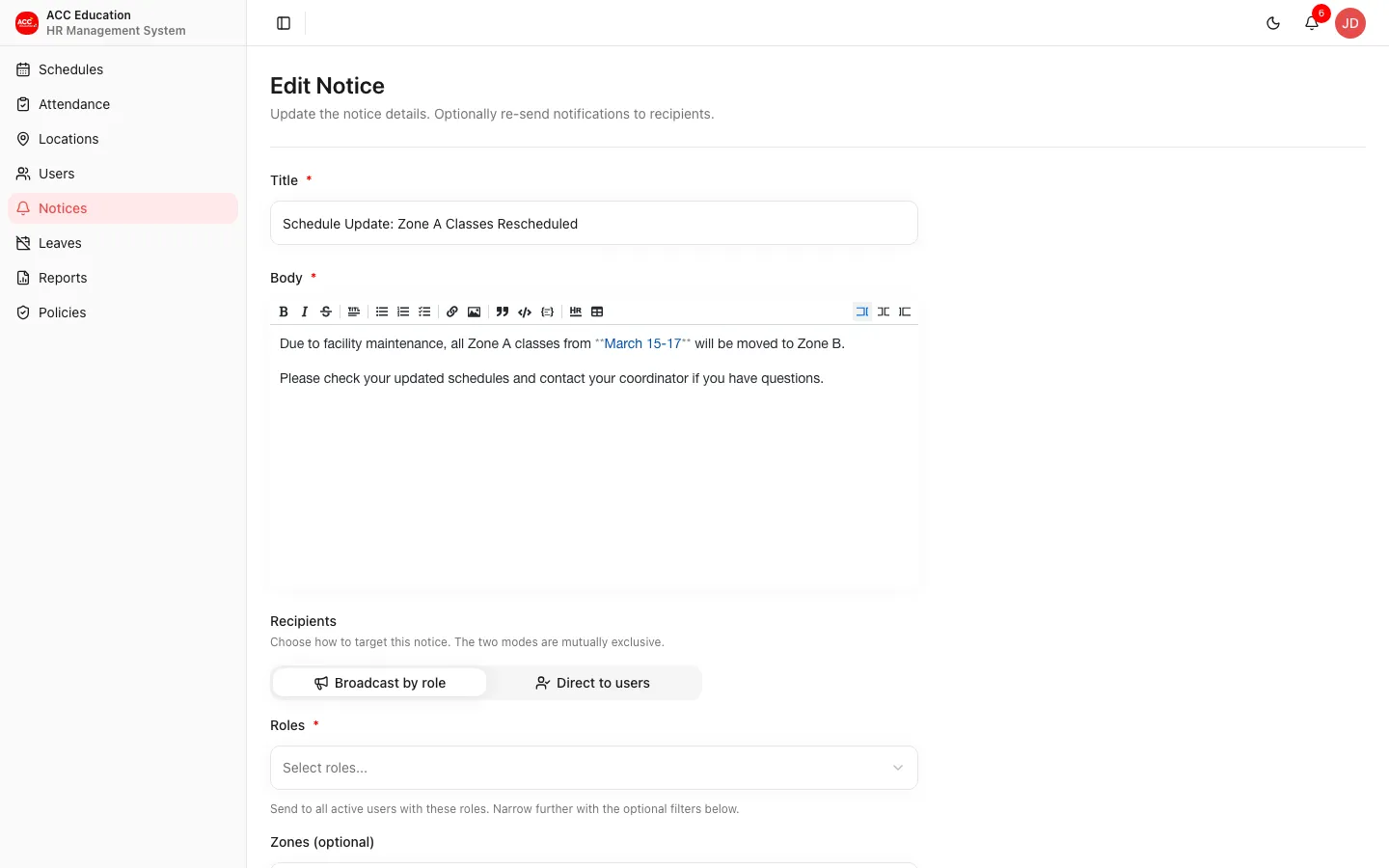
Edit Notice
Update a notice.
Roles: Super Admin, Manager, Project Coordinator
Leaves
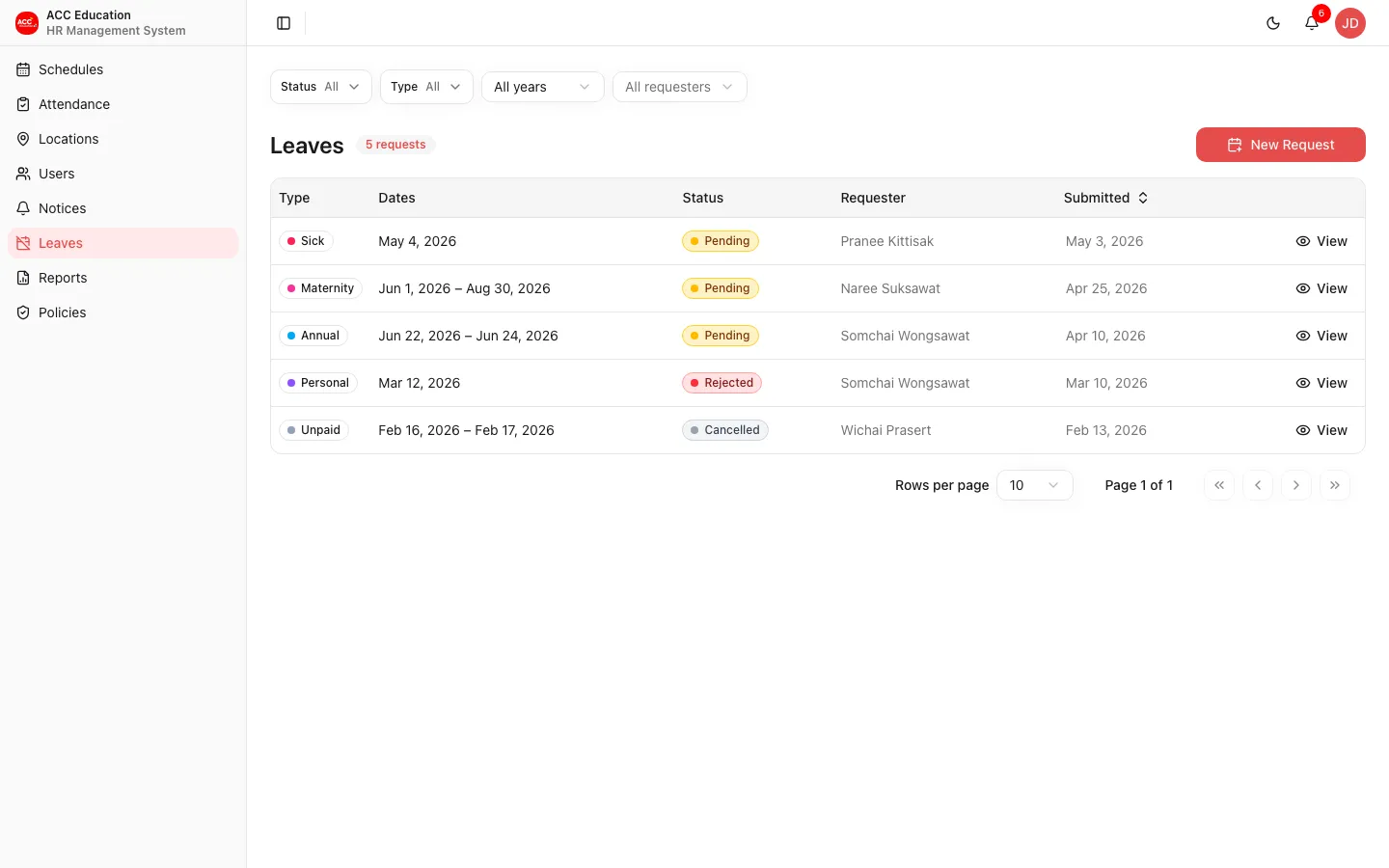
Leaves
Leave requests with status and type filters.
Roles: Super Admin, Manager, Project Coordinator, Accountant
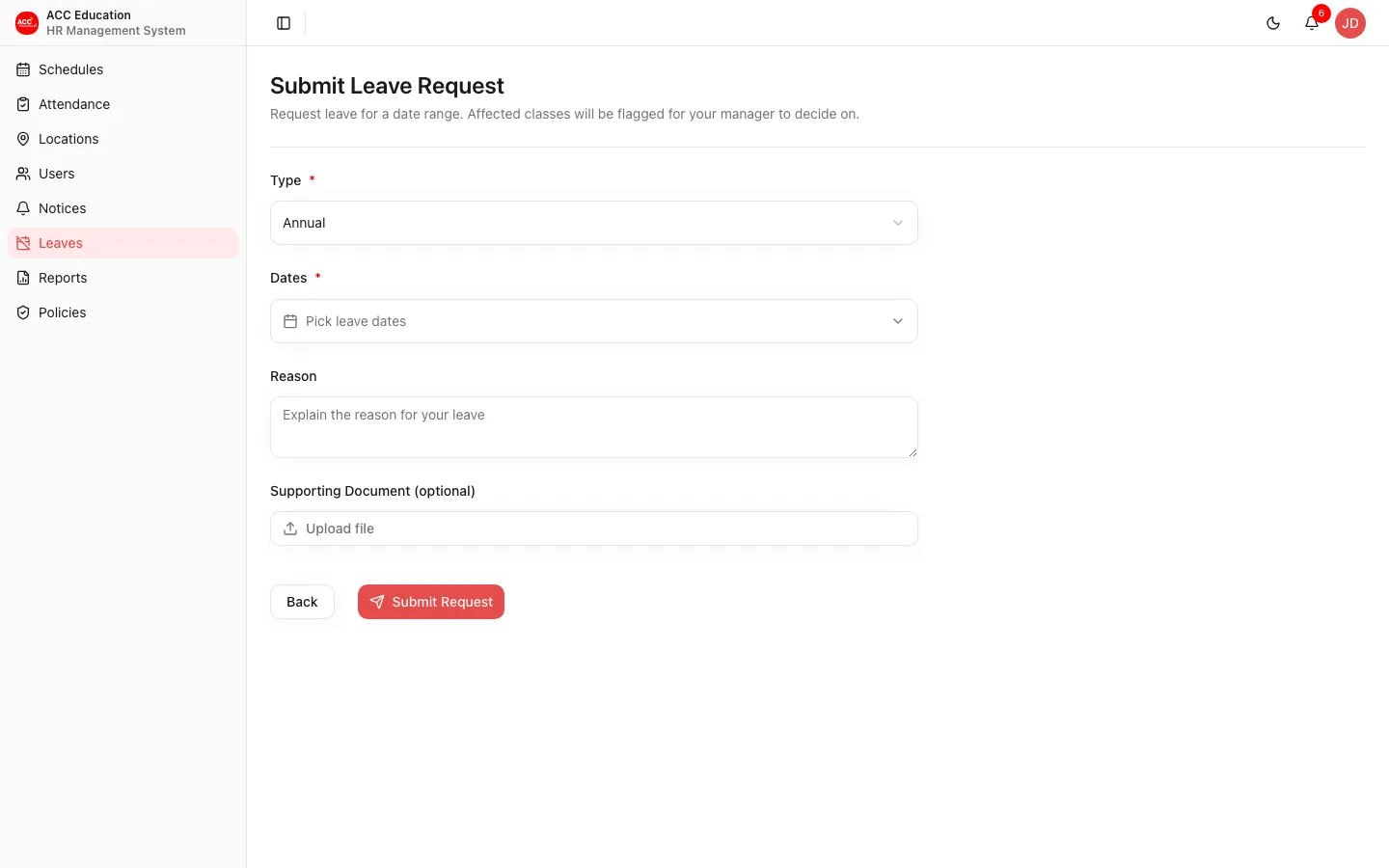
Request Leave
Submit a leave request over a date range.
Roles: All signed-in users
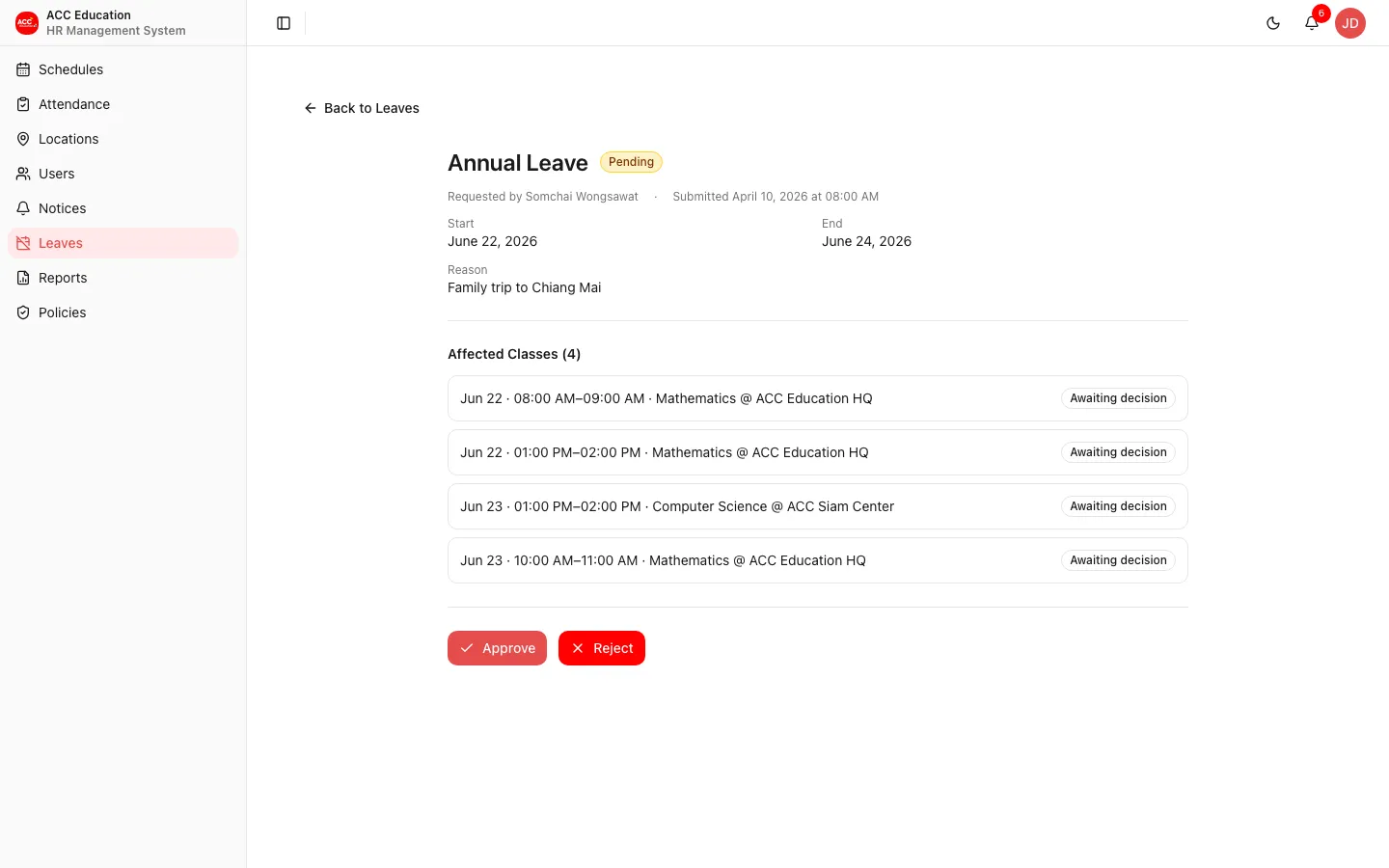
Leave Detail
Review a leave request and approve, reject, or cancel it.
Roles: The owner, or any staff role
Reports
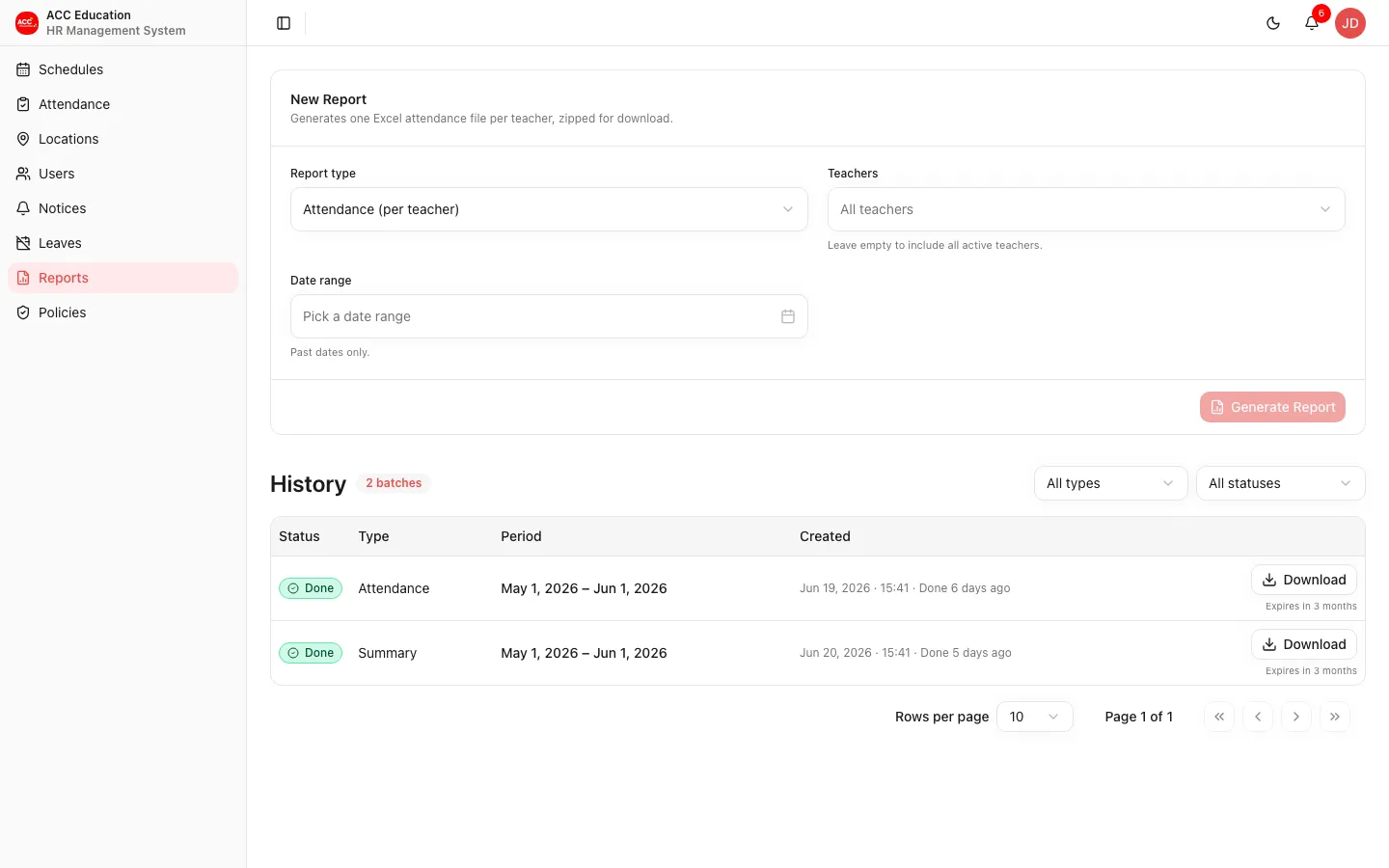
Reports
Generate downloadable attendance reports over a date range.
- Choose the report kind: Attendance (one Excel file per teacher, zipped) or Summary (a single sheet, one row per teacher).
- Pick the teachers to include, or leave the selection empty to cover all active teachers, then choose the date range.
- To scope by zone, program, school, district, or province, leave teachers empty and pick from those filters: the report covers every teacher who teaches in them, including all of that teacher's classes elsewhere. District and province narrow by the schools in them (AND'd together) and merge with any explicit school selection.
- Generated reports appear in the list below and can be downloaded once they finish processing.
- The list shows who generated each report in the "Generated by" column; it reads Unknown if that admin account has since been removed.
Roles: Super Admin, Manager, Project Coordinator, Accountant
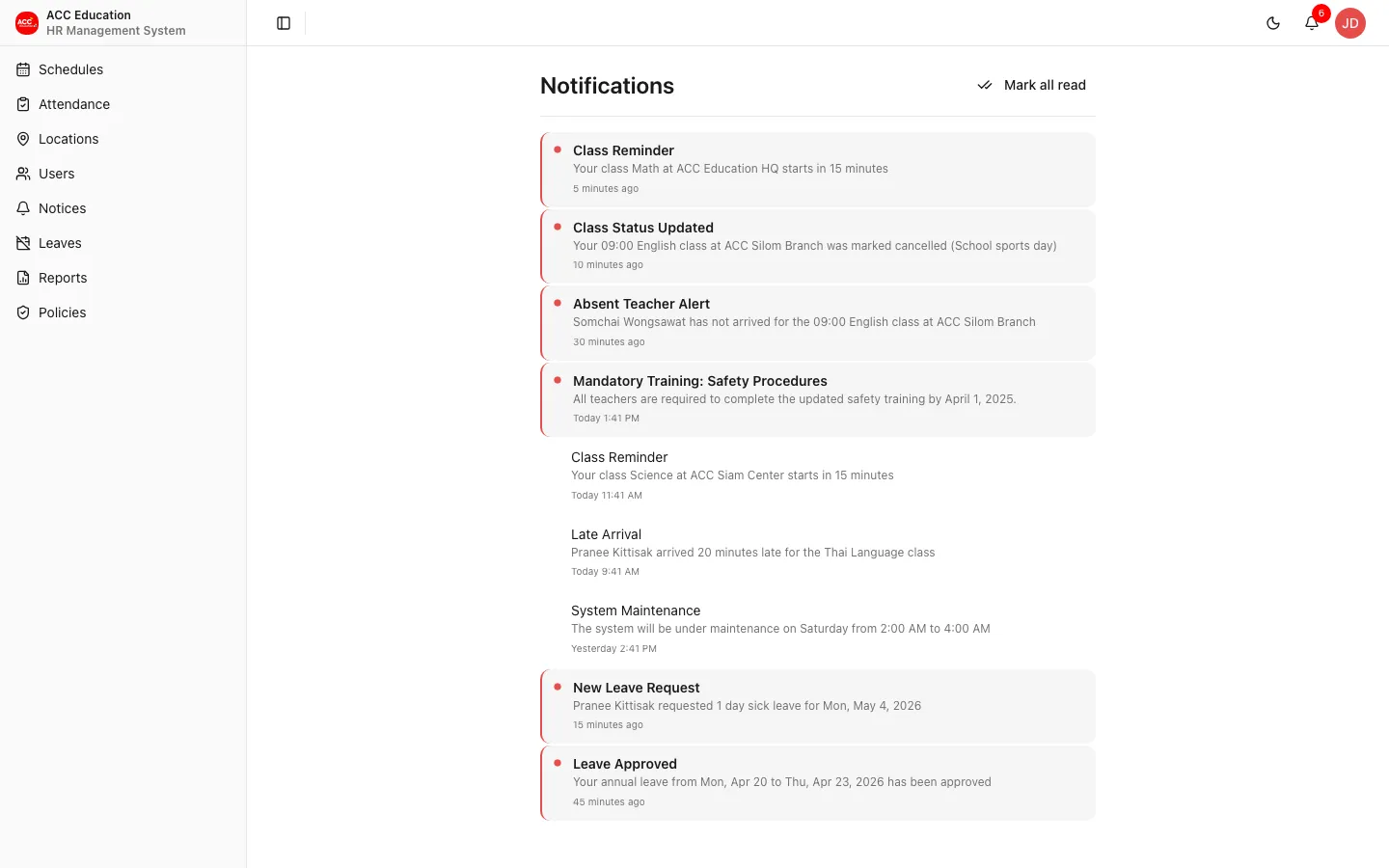
Notifications
Notifications
Your in-app notification feed.
Roles: All signed-in users
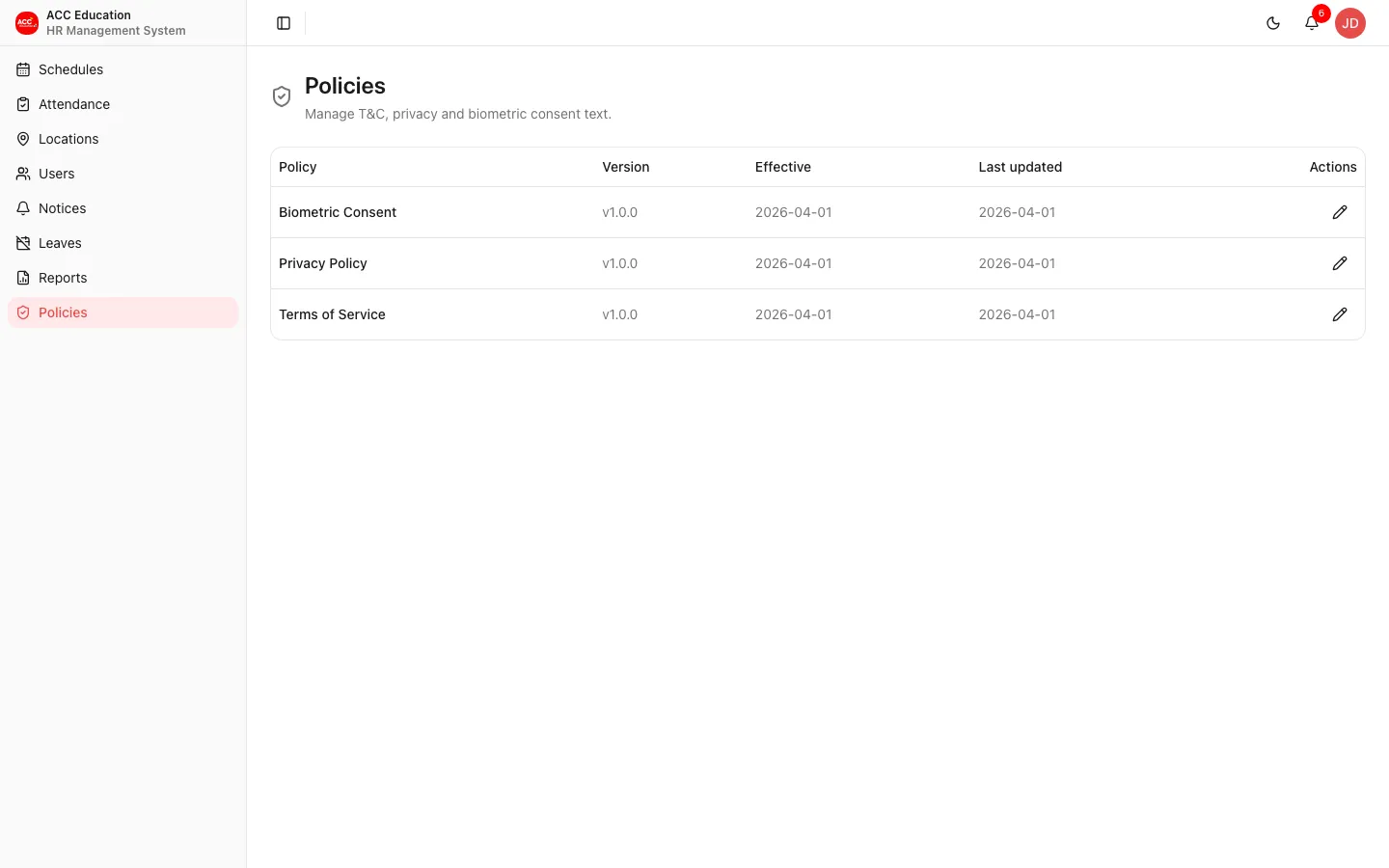
Policies
Policies
Legal policy documents (biometric, privacy, terms of service).
Roles: Super Admin only
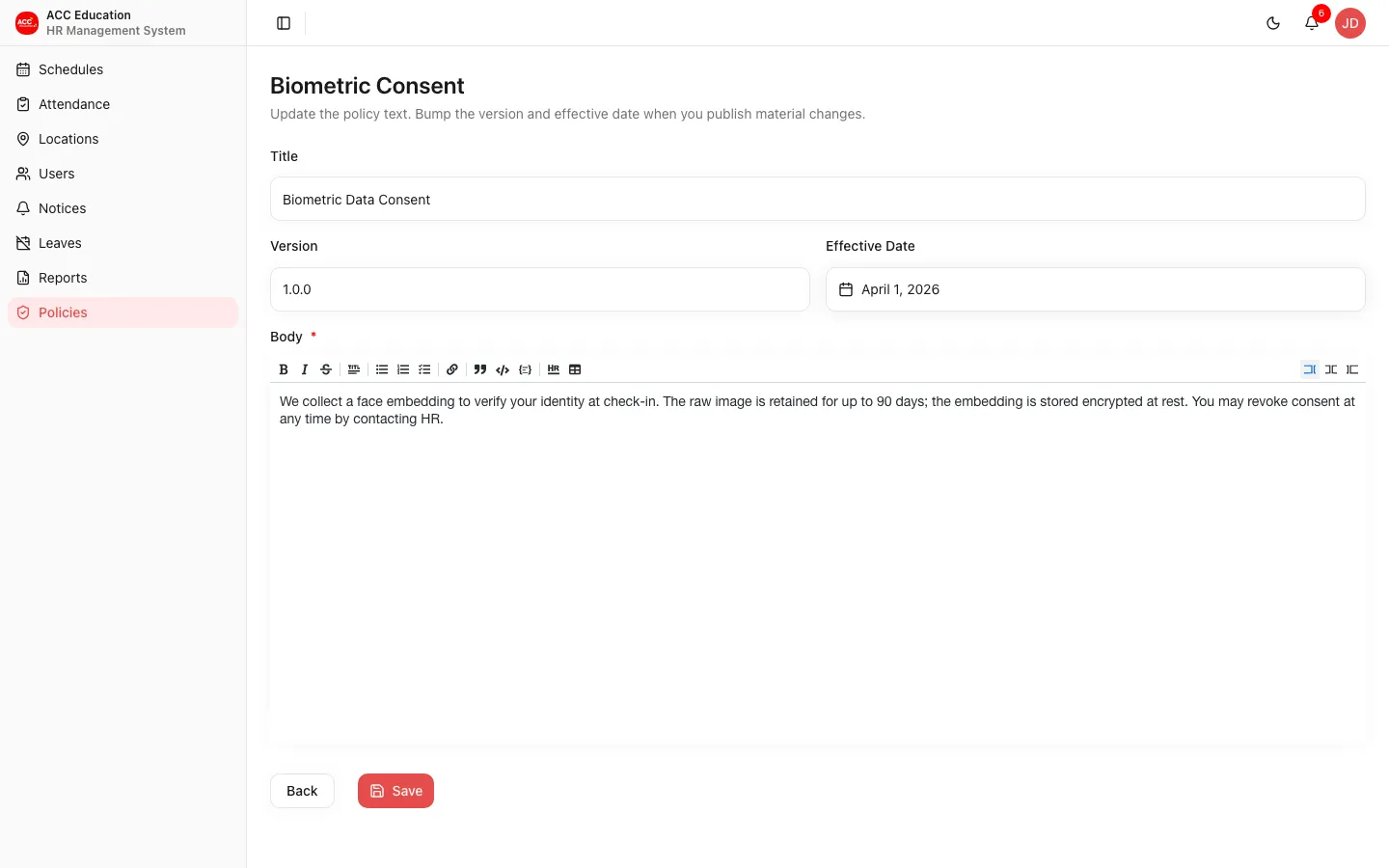
Edit Policy
Edit the content of a legal policy.
Roles: Super Admin only
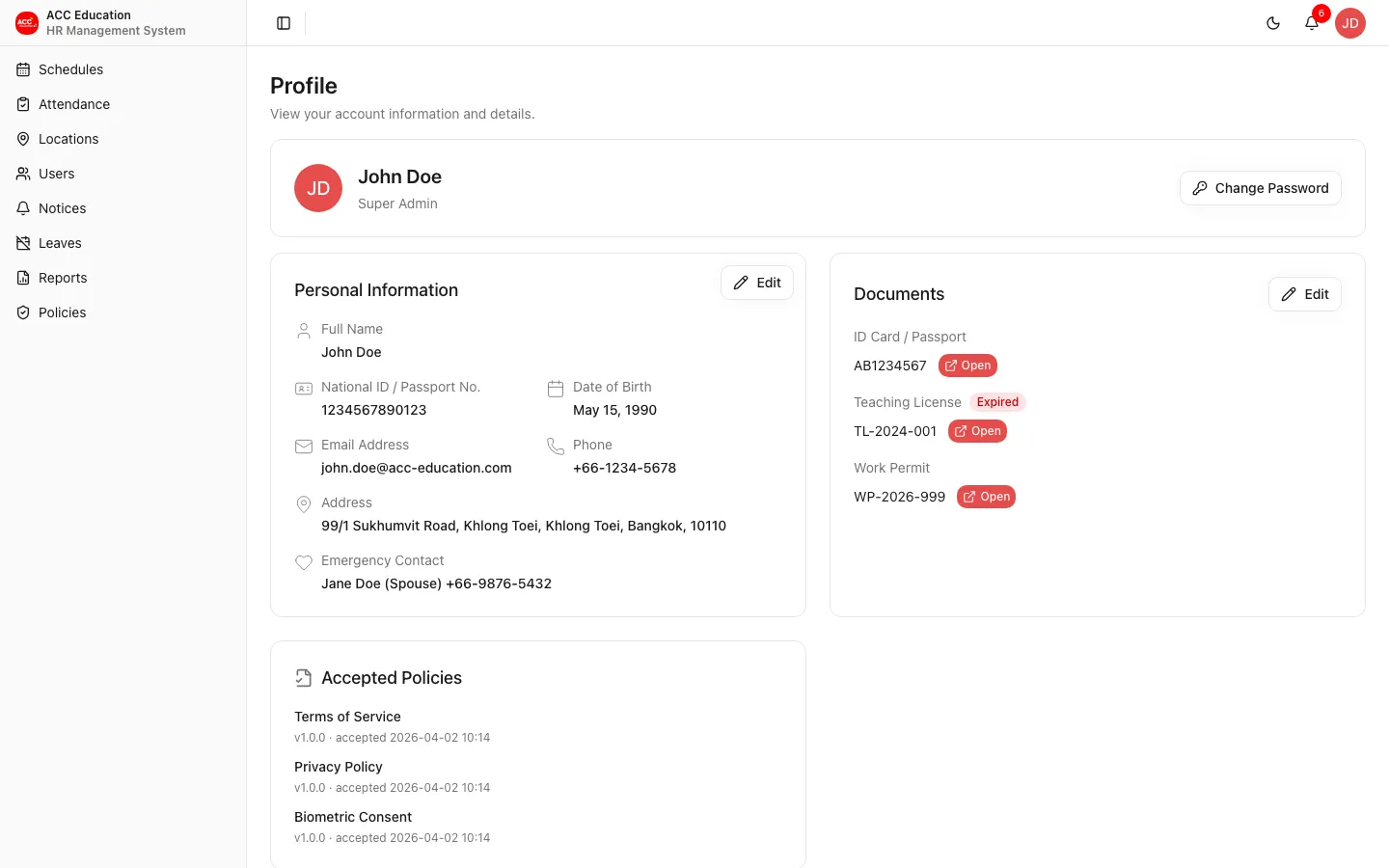
Profile
My Profile
Your own profile and documents.
Roles: All signed-in users
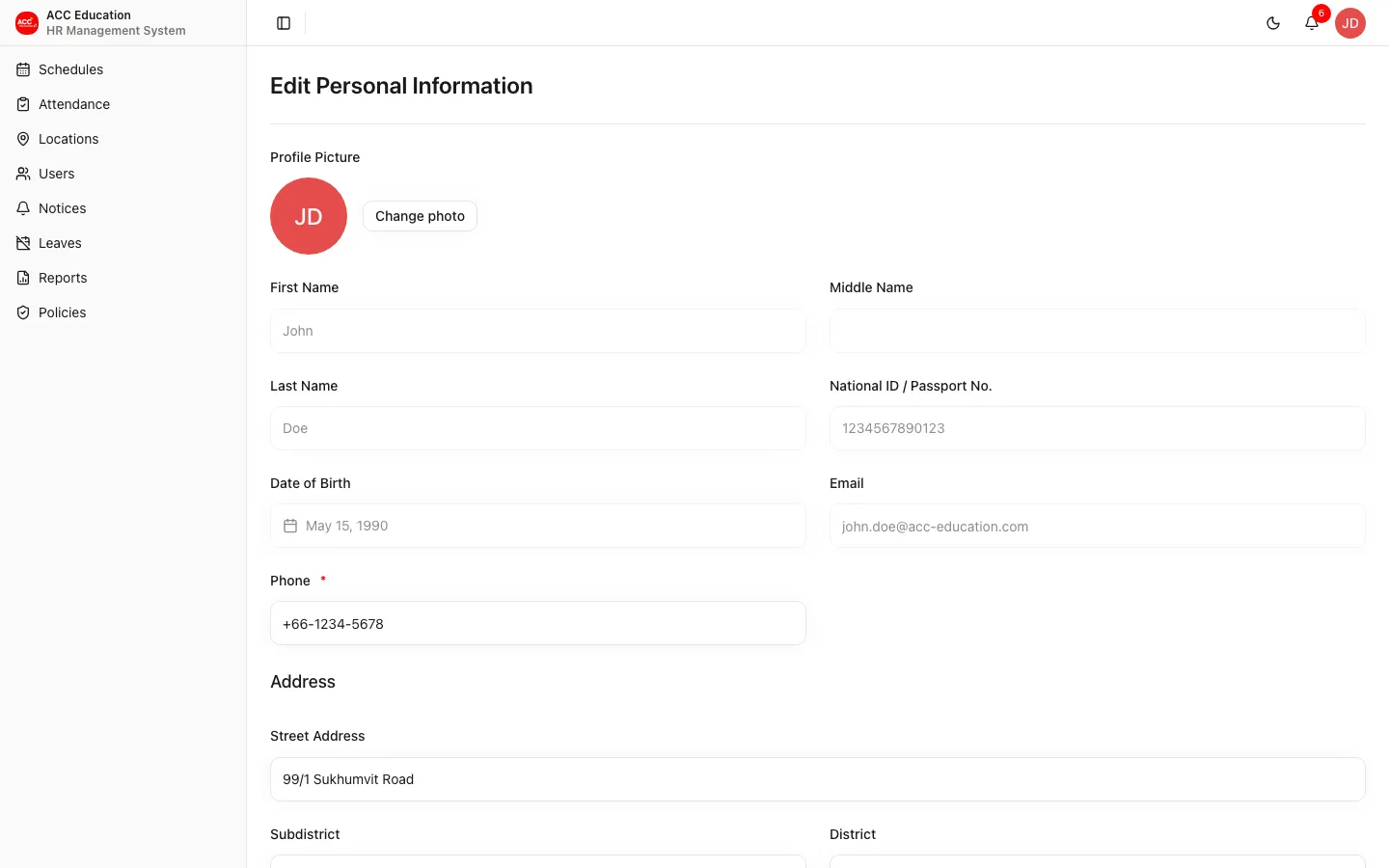
Edit Profile
Update your personal details.
Roles: The account owner
Change Password
Set a new password.
Roles: The account owner
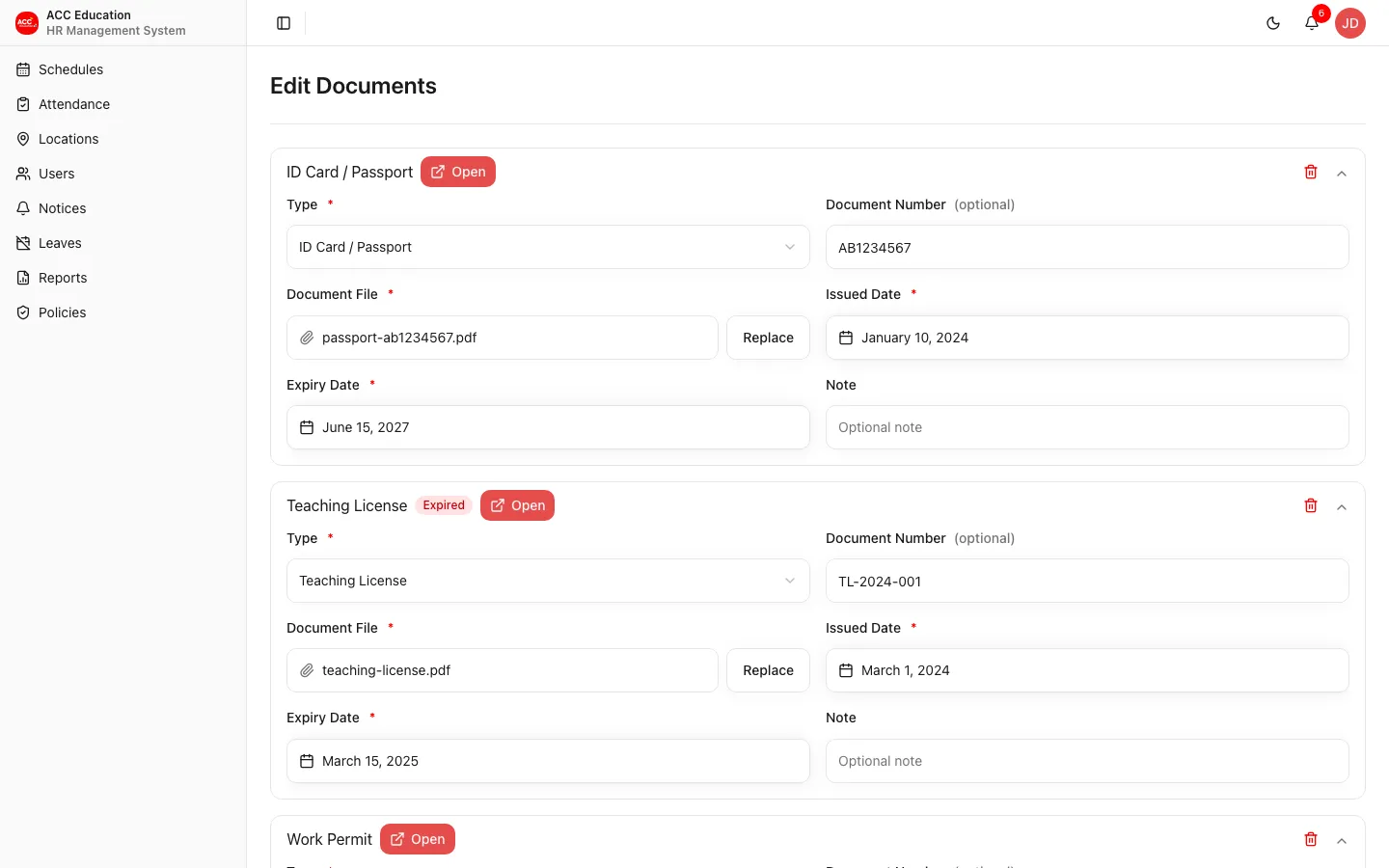
Edit Documents
Upload or replace your personal documents.
Roles: The account owner
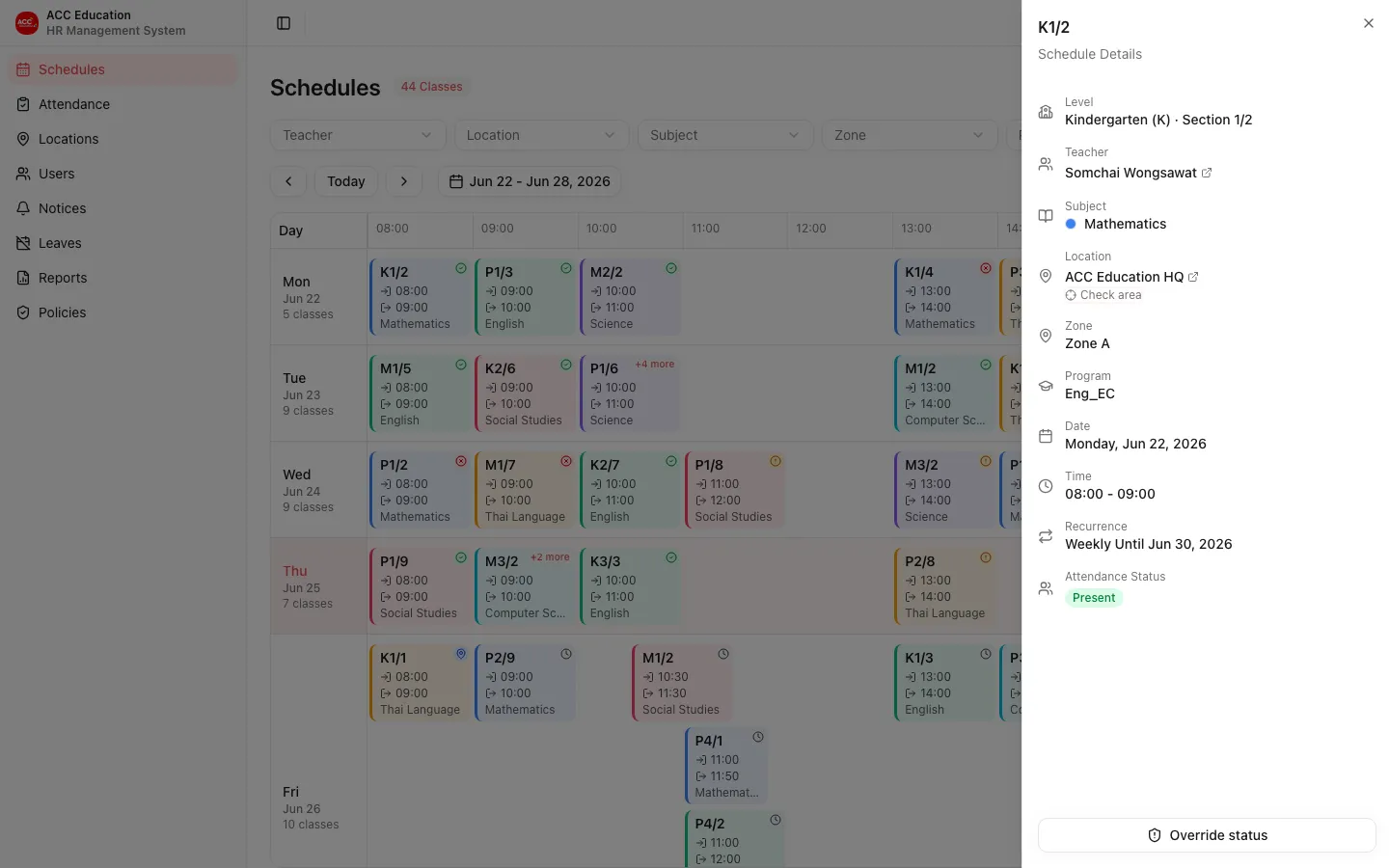
Role view differences
Manager and Project Coordinator share the same access as Super Admin, minus the Super Admin-only Policies area. Below is the Schedules screen as a Project Coordinator; note the sidebar has no Policies entry.